

1
Open System Settings
Click Configuration, then select the System Settings tab.
Player Link Settings
Set the Management Tool domain name used in Session Player links included in alert notification emails, in the format:Syteca Mode
Enable Multi-Tenant mode here. Once enabled, each tenant’s users only access their own tenant’s Clients, configuration, alerts, and reports.Concurrent Sessions
Allow concurrent sessions for Management Tool users — when selected, the same credentials can be used to log in from multiple IP addresses simultaneously. When deselected, only one login is allowed at a time; a second login with the same credentials forces the first session out.Timeout
The idle time after which a Management Tool user is automatically logged out. Default: 20 minutes.Expiration Time of Access Requests
How long pending access requests remain valid before expiring. Default: 30 minutes.Expiration Time of Access Requests for Usage of Secrets
How long pending and approved secret-usage access requests remain valid before expiring. Default: 30 minutes.Windows Event Log Integration
Select Send log messages to Windows Event log to forward Syteca log messages to the Application Server computer’s Windows Event Log, and choose a severity level.Server Log Settings
Set the severity level for entries written to the Application Server log files.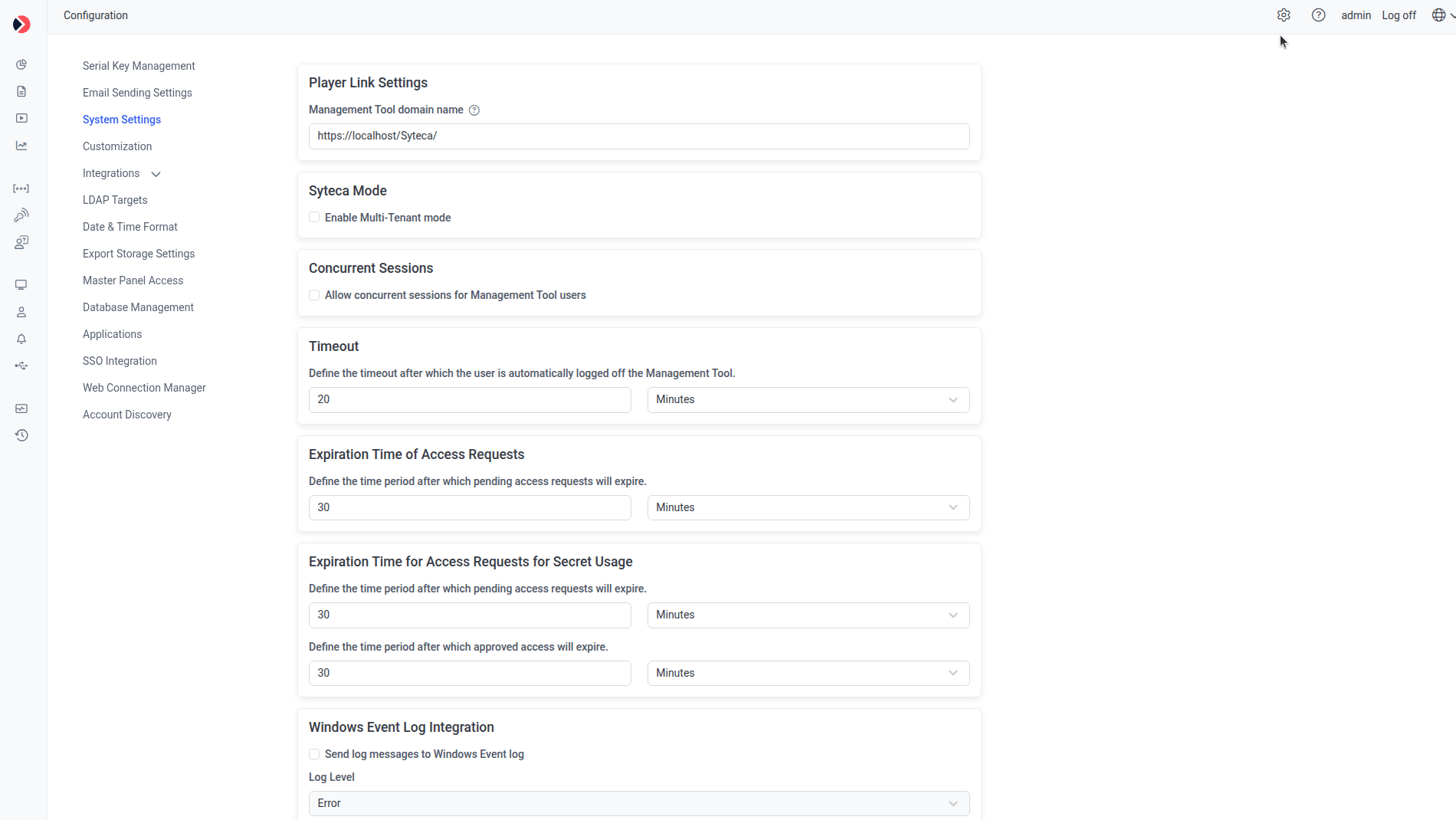
The System Settings tab.
In Multi-Tenant mode
A tenant admin sees a much smaller version of this tab — most settings above are system-wide and only configurable by the built-in default tenant’s admin. Tenant admins instead see:- Account Access — select Grant a technician full access to my tenant account to let the technician (the default tenant’s admin) log in as the tenant admin and perform the same actions they can.
- Windows Event Log Integration — same as above.
Related
Multi-Tenant mode
Full Multi-Tenant mode documentation.
Logs
Application Server log collection and levels.
Email Sending Settings
Other Configuration page settings.