

Applies to Windows, macOS, and Linux Clients. The parameter and its default value are identical across all three; only the configuration path and the underlying cache file differ.
Configure the offline cache size
1
Open the Client or Client Group settings
On the Editing Client or Editing Client Group page, select the Monitoring (Windows/macOS) tab.
2
Set the cache size
In the Advanced Options section at the bottom, set the Offline cache size (MB) value. The default is 500 MB.
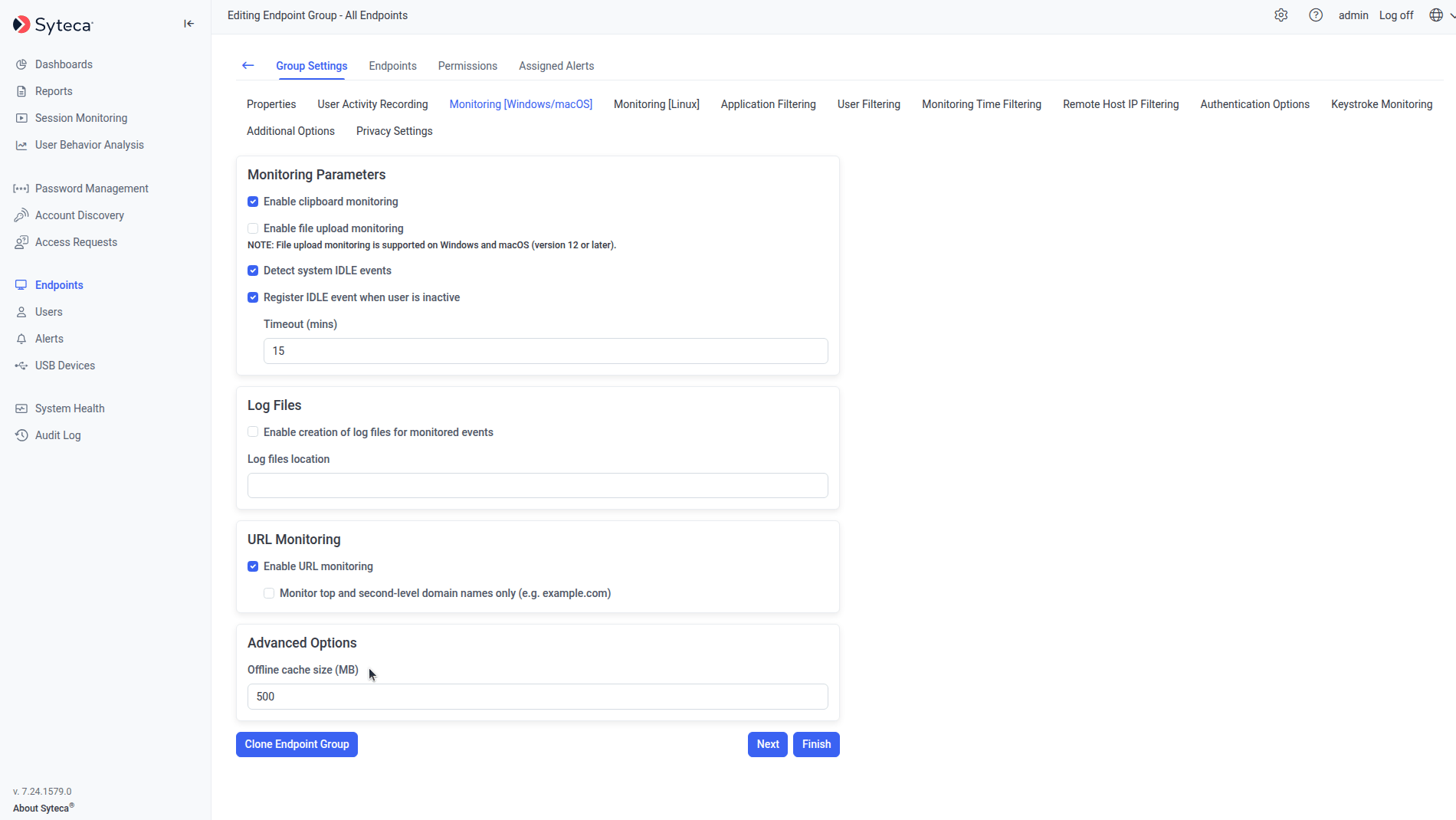
The Offline cache size (MB) field in the Advanced Options section of the Monitoring tab.
Where the cache is stored
- Windows
- macOS
- Linux
Cached data is written to a file named
TempWrite.dat inside the Windows Client’s installation folder.Move the Linux offline cache to another location
On Linux, the offline cache files can be relocated to a non-default folder (for example, a NAS mount or another drive) by moving them and replacing them with soft links.1
Unassign the Client's license
On the Clients page, unassign the license from the Linux Client to confirm it has no active (Live) sessions.
2
Stop the Client services
3
Stop the offline pool manager service
4
Locate the cache files
Open
/var/.ekran/internal/, where EkranOfflinePool.dat, EkranOfflinePool.dat-shm, and EkranOfflinePool.dat-wal are located.5
Move the files
6
Create soft links back to the original location
In some cases the files’ owner needs to be changed to
root:7
Restart the services
8
Reassign the Client's license
On the Clients page, reassign the license to the Linux Client.
Related
Windows Clients
Client configuration parameters for Windows.
Linux Clients
Client configuration parameters for Linux.
Disconnected Clients
How Syteca detects and reports Clients that have gone offline.
Golden Image Mode
Related Client-side configuration for VDI cloning.