

Prerequisites
- Windows 10 version 1607 or higher.
- Devices enrolled in Intune, and either Azure AD registered, Azure AD joined, or Hybrid Azure AD joined.
- A generated Windows Client installation package containing
SytecaClient.exe.
In SaaS deployments, download the installation package containing
SytecaClient.msi instead of SytecaClient.exe — see Getting started with a SaaS deployment for how to obtain it.Package the Client as a .intunewin file
1
Create a staging folder
Create an empty folder (for example
SytecaClientInstall) and copy the downloaded SytecaClient.exe into it.In SaaS deployments, use
SytecaClient.msi instead.2
Download the Win32 Content Prep Tool
Download and install the Microsoft Win32 Content Prep Tool.
3
Create an output folder
Create a second empty folder (for example
C:\output).4
Repackage the installer
Run:This produces
SytecaClient.intunewin in the output folder.Create the Win32 app in Intune
1
Add a new Windows app (Win32)
In the Microsoft Endpoint Manager Admin Center, go to Apps > All Apps, click + Add, and select Windows app (Win32).
2
Upload the package
Click Select app package file, choose
SytecaClient.intunewin, and click OK.3
Enter app information
On App information, fill in Name, Description, and Publisher — available from the Details tab of
SytecaClient.exe’s (or SytecaClient.msi’s) file properties.4
Set the install and uninstall commands
On the Program tab:
-
Install command:
SytecaClient.exe /ServerName=<IP/Hostname> /TenantKey=tenantkey(replace<IP/Hostname>with the Syteca Server address, andtenantkeyif applicable).In SaaS deployments, usemsiexec /i "SytecaClient.msi" PROXY_HOST=<your proxy host> SILENT_INSTALL=Y /quietinstead. -
Uninstall command:
C:\Program Files\Ekran System\Ekran System\UninstallClient.exe /key=<uninstallation_key>(replace<uninstallation_key>with the actual key). - Install behavior: System.
- Device restart behavior: No specific action.
5
Set requirements
On the Requirements tab, set Operating system architecture to 64-bit, and Minimum operating system to the Windows version used in your environment (for example Windows 10 1607).
6
Set a detection rule
On Detection rules, select Manually configure detection rules, click + Add, and set:
- Rule type: File
- Path:
C:\Program Files\Ekran System\Ekran System - File or folder:
UninstallClient.exe - Detection method: File or folder exists
- Associated with a 32-bit app on 64-bit clients: No
7
Assign the app
Create an Azure AD Security Group containing the target users or devices. Add it under Required so the app installs automatically on enrolled devices.
Assigning by user deploys to every Azure-joined, Intune-enrolled device for that user. Assign by device instead to target specific machines.
8
Review and create
On Review + Create, save the app. Intune uploads the
.intunewin file and begins deployment.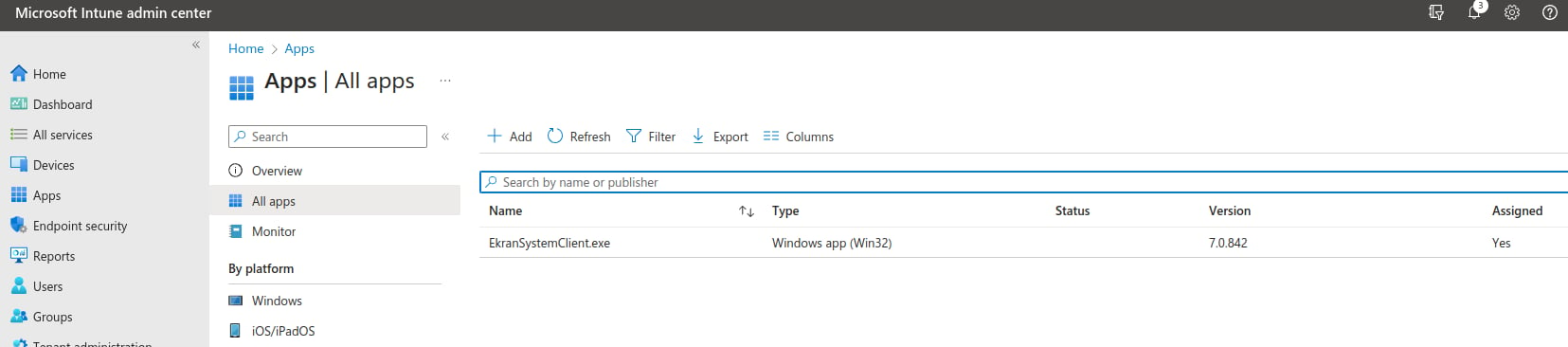
A completed Win32 app package ready for deployment in Intune.
Related
Windows Clients
Full Windows Client installation and configuration reference.
Golden Image Mode
An alternative deployment approach for VDI/cloned images.