

Before you begin
- Identify the IP address of the Syteca Application Server. If your network uses NAT, you need the external IP address.
- Decide whether to allow connections from a single IP or from an entire subnet — you will enter this in
pg_hba.conf. - Confirm that you have administrator access to both the PostgreSQL server and the Application Server.
Install and configure remote access
1. Install PostgreSQL
Download PostgreSQL 10 or later from the official PostgreSQL website and run the installer on the remote database server.2. Configure listen addresses
On the PostgreSQL server, navigate to the data folder and openpostgresql.conf:
listen_addresses parameter. Set it to * to accept connections from any IP address, or replace * with the specific IP address of the Application Server:
3. Allow the Application Server in pg_hba.conf
In the same folder, openpg_hba.conf.
Under the IPv4 local connections section, add a new row with the following values:
If your network uses NAT, enter the external IP address of the Application Server in the Address field — not the internal one.
pg_hba.conf.
4. Restart PostgreSQL
Restart the PostgreSQL service to apply both configuration changes. Changes topostgresql.conf and pg_hba.conf do not take effect until the service restarts.
5. Open port 5432 on both machines
On both the PostgreSQL server and the Syteca Application Server, open Windows Firewall and add an inbound rule that allows TCP traffic on port 5432.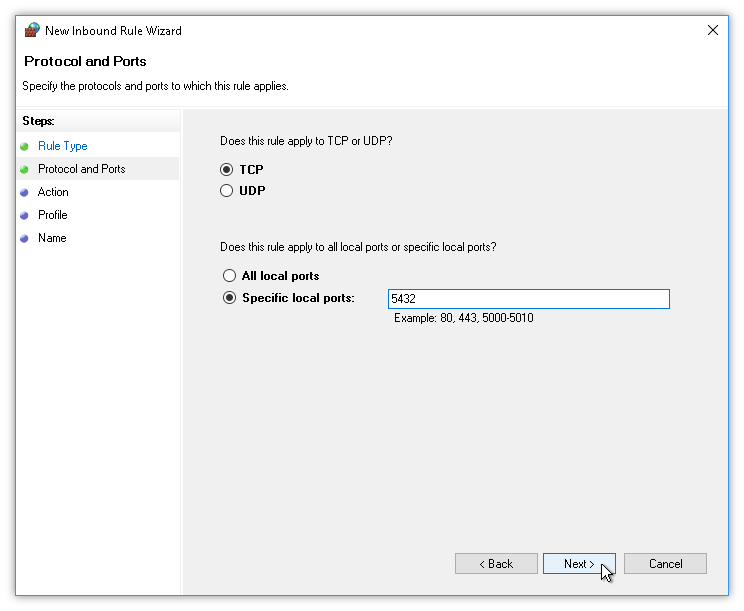
Windows Firewall inbound rule allowing TCP port 5432 for PostgreSQL remote access.
Verify the connection
After completing all steps, the Syteca Application Server should be able to reach the remote PostgreSQL instance. If the connection fails, check the following:- Port 5432 is open on both machines, not just one.
- The IP address in
pg_hba.confexactly matches the address the Application Server connects from. - The PostgreSQL service was restarted after the configuration changes.
- If NAT is in use, the external IP address — not the internal one — is entered in
pg_hba.conf.
Next steps
Configure PostgreSQL
Complete PostgreSQL configuration steps for Syteca Application Server.
PostgreSQL Without Superuser
Tighten security by running PostgreSQL under a non-superuser account.
Compare Database Types
Not sure whether to use PostgreSQL or MS SQL Server? Compare both options.
Network Port Requirements
Full list of ports required across all Syteca components.