

The single most important backup in your Syteca deployment
The Syteca Master Certificate — internally namedEkranMasterCertificate — sits at the root of Syteca’s encryption hierarchy. It encrypts the Data Protection certificate (which encrypts every screen capture), the TOTP initial vectors, the database connection string, and the password protecting the symmetric key for logged keystrokes. Without it, the Syteca database is unreadable. There is no recovery mechanism.
That makes the Master Certificate the single most important artifact to back up. Every operational scenario that involves moving Syteca — Application Server recovery after host failure, migration to a new server, High Availability cluster setup, system upgrade, even reinstalling on the same host with a preserved database — depends on having a working backup of this certificate. Compare this to general key management in CyberArk (Vault Server keys), Delinea (Encryption Key), and BeyondTrust (Master Key): the cryptographic foundation under all of them is similar; what matters is whether your operations team treats it with the same seriousness.
When you need this
Back up the Master Certificate
The backup is a.pfx file (Personal Information Exchange) containing the certificate and its private key, protected with a password you set during export. Keep both the file and the password somewhere safe and not on the Application Server host itself.
Open MMC on the Application Server
mmc in the Run window, and press Enter. Click Yes in the User Account Control prompt.Add the Certificates snap-in
Locate EkranMasterCertificate
EkranMasterCertificate.Start the Certificate Export Wizard
EkranMasterCertificate, then select All Tasks → Export from the context menu. The Certificate Export Wizard opens; click Next on the welcome page.Export the private key
Choose the file format
- Include all certificates in the certification path if possible
- Export all extended properties
Set a password
Save the file
.pfx file. Pick a meaningful name like EkranMasterCertificate-<deployment>-<date>.pfx. Click Next, then Finish on the completion page.Delete the Master Certificate
Deletion is needed in two scenarios: (1) cleaning up a duplicate certificate before a fresh install, and (2) replacing the certificate after a reissue.Open MMC and the Certificates snap-in
mmc, then press Enter. Click Yes in the UAC prompt.In the Console window: File → Add/Remove Snap-in → Certificates → Add → Computer account → Next → Local Computer → Finish → OK.Locate EkranMasterCertificate
EkranMasterCertificate.Delete
EkranMasterCertificate, then select Delete in the context menu. Click Yes in the confirmation message.Export the master certificate
Exporting the master certificate produces a file you can copy to another computer and import there — for example, when moving an MS SQL Server database signed with the certificate to a different machine.Open the Certificates snap-in
mmc, and press Enter. Click Yes on the User Account Control prompt.Add the Certificates snap-in
Target the local computer account
Locate the certificate
Start the export
Complete the Certificate Export Wizard
Move the file to the destination computer
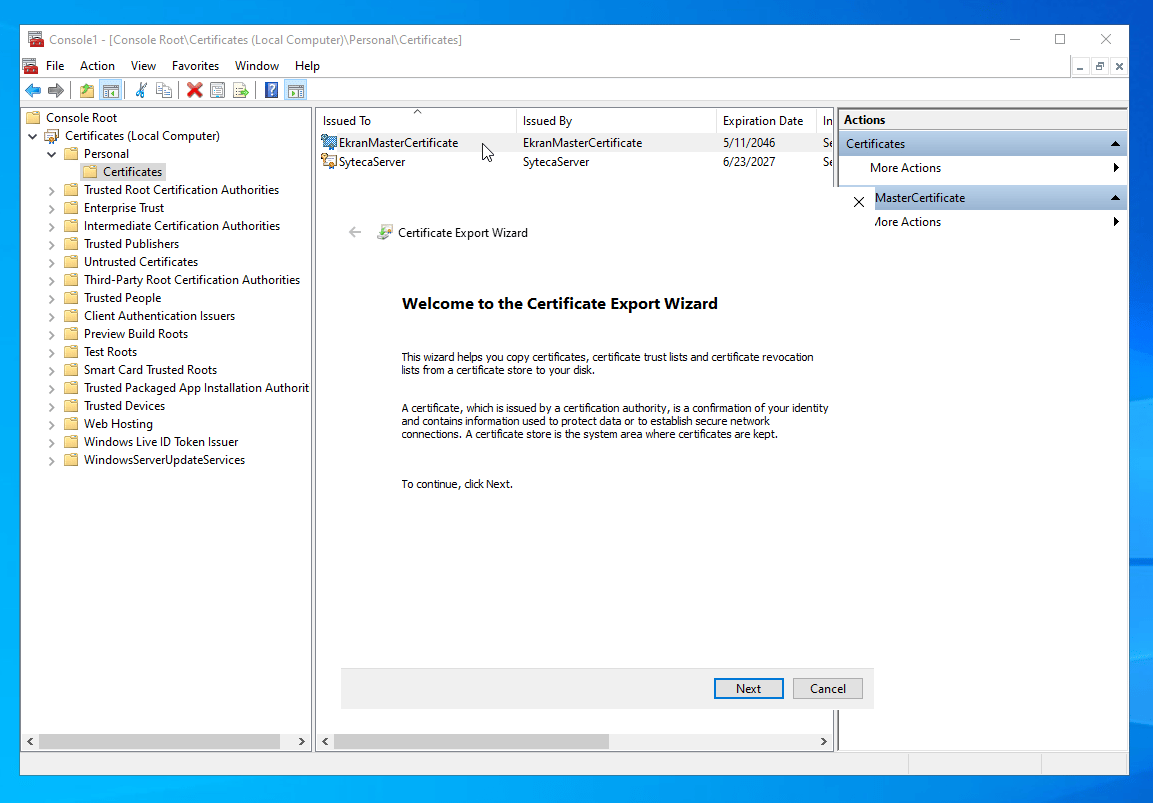
Selecting an export format in the Certificate Export Wizard.
Import the Master Certificate
Restoring from a.pfx backup — used after reinstallation, host migration, HA cluster setup, or reissue.
Open MMC and the Certificates snap-in
mmc, press Enter, click Yes in the UAC prompt.In the Console window: File → Add/Remove Snap-in → Certificates → Add → Computer account → Next → Local Computer → Finish → OK.Start the Certificate Import Wizard
Pick the file
.pfx backup file, then click Next.Enter the password
Pick the destination store
Finish
Reissue the Master Certificate
The Master Certificate has an expiration date. Expiration does not stop Syteca from functioning - the system continues operating normally - but the Application Server starts logging alerts to the Windows Event log about the expiration. Reissue replaces the certificate so the alerts stop.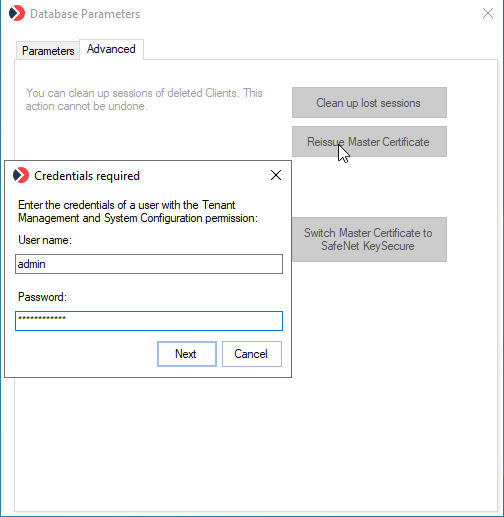
The Database Parameters tool's Advanced tab - Reissue Master Certificate is the primary action, with the Migrate Master Certificate to 4096-bit button visible above it for deployments upgraded to v.7.23+.
Sign in as a local administrator
Open Database Parameters
DbSetupToolUI application.(Optional) Migrate to RSA-4096 first
Click Reissue Master Certificate
Authenticate as a system-configuration admin
Save the new certificate file
Complete the reissue lifecycle
- Back up the existing (about-to-be-replaced) Master Certificate as a final fallback.
- Delete the existing Master Certificate from the Certificate Store.
- Import the new Master Certificate that was just generated.
Configuration / Generating / The user has issued and saved a new Master Certificate.Migrate to RSA-4096
For deployments upgraded to Syteca v.7.23 or higher from earlier versions, the Master Certificate remains at its original RSA-2048 encryption. An optional migration to RSA-4096 is available — providing stronger encryption for the entire key hierarchy. The migration is one-way (RSA-4096 cannot be downgraded back to RSA-2048 in-place).Open Database Parameters
DbSetupToolUI application.Click Migrate Master Certificate to 4096-bit
Follow the on-screen instructions
Verify completion