

Editing requires the administrative Client Installation and Management permission.
1
Open Email Sending Settings
Click Configuration, then select the Email Sending Settings tab.
Email Connection Settings
-
SMTP mail server — the outgoing mail server address.
Mail servers that only support NTLM authentication (for example, Microsoft Exchange Server) aren’t supported.
- From — the email account notifications are sent from.
- Port — the SMTP port.
- Encrypted connection type — None, SSL, or TLS.
- Turn off certificate validation — skip certificate validation for the connection.
Email Connection Credentials
Enter the User and Password for the mail server specified in From above. If the mail server doesn’t require credentials, select No authentication.Administrator Email
Enter one or more email addresses (semicolon-separated) to receive license expiration notifications.Health Monitoring Notifications
- Send notification on error events — notify immediately on every System Health error event.
- Minimal interval between the same error events (min) — how often repeated instances of the same error trigger a new notification, bundling the count of repeats in between. Default: 10 minutes.
- Send notification in case of no error events — get a notification if the Transaction Log stays clear, at the interval set in Send notification in case of no error events every (hours). Default: 6 hours.
- Email — one or more recipient addresses, semicolon-separated.
Domain restrictions
Allow Syteca to send emails only to the following domains restricts outgoing email to specific domains — enter one or more, semicolon-separated.Test the connection
Send a test email to a specified address to confirm the connection settings above are correct.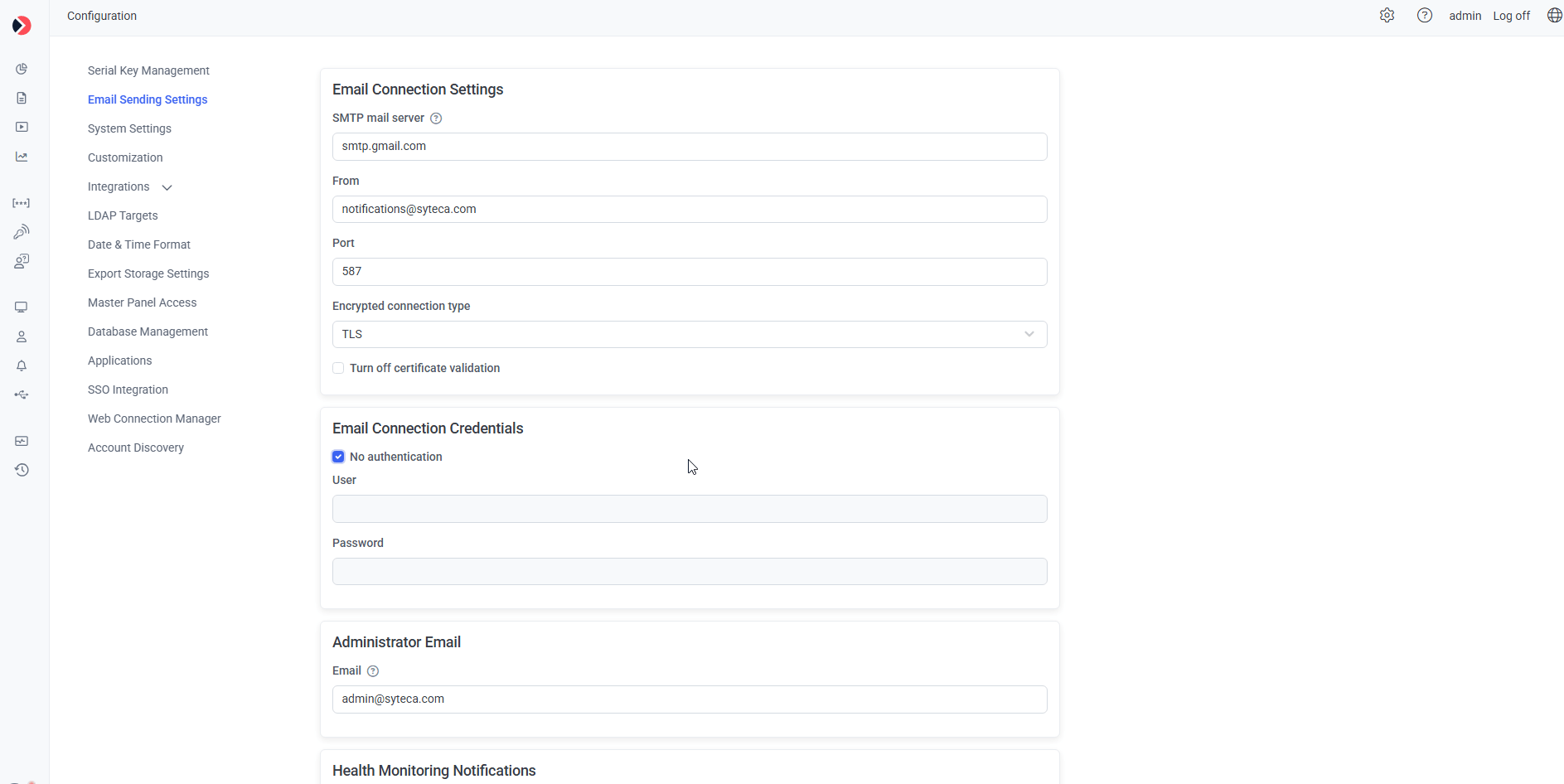
The Email Sending Settings tab.
Related
System Health dashboards
Where health monitoring error events originate.
Alerts
Configure alert rules that trigger these email notifications.
System settings
Other Configuration page settings.