

When to add these exceptions
Add the exceptions on the Windows Server hosting the Syteca Management Tool (typically the same server hosting the Application Server) when:- IIS Request Filtering is configured with an explicit allow list rather than the default permissive allow.
- The organization enforces a Windows Server hardening baseline (CIS, DISA STIG, or an internal equivalent) that restricts IIS file-extension policies.
- Any Syteca resource fails to load with an HTTP 404.7 (File Name Extension Not Allowed) error in the browser or Application Server logs.
Permissions required
The user performing this procedure needs local administrator access on the Windows Server hosting IIS and the Syteca Management Tool. IIS Manager displays and modifies the Request Filtering rules stored inapplicationHost.config, which requires administrator write access.
Add the file extension exceptions
Perform this procedure once on the Windows Server hosting the Syteca Management Tool.1
Open IIS Manager
Open Internet Information Services (IIS) Manager on the Windows Server hosting the Management Tool.
2
Navigate to the Syteca application
In the IIS Manager left tree, expand:Click on Syteca to select it.
3
Open Request Filtering
In the middle pane, in the IIS section, double-click Request Filtering.
4
Add each required extension
In the Request Filtering pane, click File Name Extensions. Then click Allow File Name Extension… in the Actions pane on the right.Add each of the extensions listed in the two tables below, one at a time. Each entry adds an
<add fileExtension="..." allowed="true" /> line to the applicationHost.config.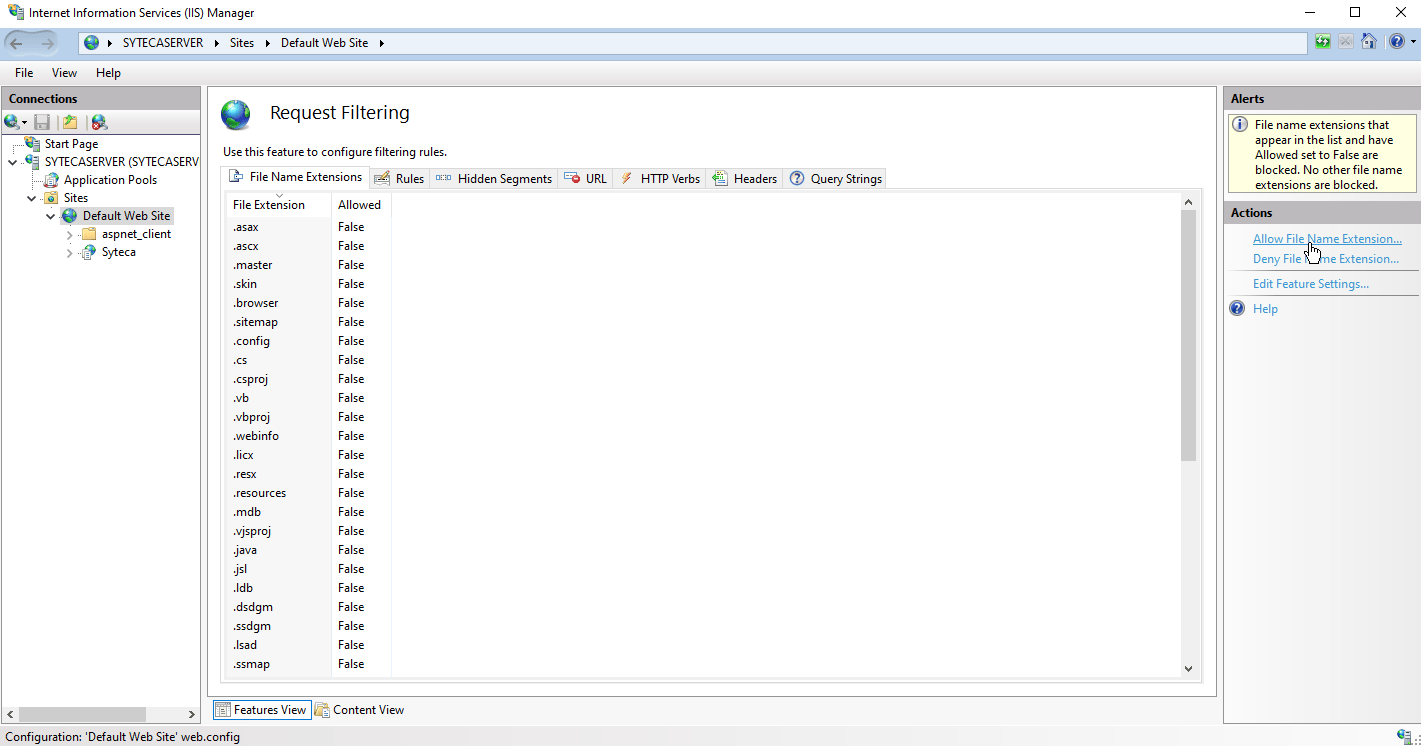
IIS Manager. The Allow File Name Extension dialog under Request Filtering, where each Syteca extension is added.
Extensions required for the Management Tool web interface
The following file extensions must be allowed for the Management Tool interface, Session Player, and reports to render correctly:
The complete list of extensions to add:
.bmp, .eot, .html, .jpg, .xml, .json, .svg, .woff2, .gif, .map, .woff, .css, .ttf, .pdf, .js, .cs, .png, .axd
Extensions required for other Syteca components
The following additional extensions are required for specific Syteca features. If the feature is not used, its extension can be omitted, but adding all of them at once is simpler and does not increase the attack surface meaningfully.If Forensic Player is not used in the deployment (for example, when session review only happens in the browser-based Session Player), the
.exe exception can be safely omitted.Verify the exceptions took effect
After adding all extensions:- Reload the Management Tool in a browser.
- Verify that the interface loads fully. Icons, fonts, and the Session Player thumbnail grid should all render correctly.
- Download an Application Server log zip from the Management Tool. If the download succeeds, the
.zipexception is active. - If any resource still fails to load, check the browser’s Developer Tools Network tab for HTTP 404.7 errors. The rejected extension will be listed in the response and can be added to the allow list.
Related
Install Application Server
Full Application Server install procedure. IIS is installed as part of the standard install.
Application Server troubleshooting
Common Application Server issues and their resolutions.
Application Server advanced settings
Advanced configuration on the Application Server, including IIS-facing settings.
System requirements
IIS version requirements alongside other prerequisites.