

One deployment, many isolated tenants
Most security platforms force a hard choice: deploy one instance per organization (expensive and impossible to maintain at MSP scale), or share one instance with everyone seeing everyone else’s data (a non-starter for any environment with confidentiality requirements). The alternative — running fully separate Syteca installations for each business unit, customer, or department — multiplies your infrastructure, licensing, and operational overhead by however many divisions you support. Syteca Multi-Tenant mode is the middle path. One Syteca deployment hosts multiple isolated tenants. Each tenant has its own admin user, its own end users, its own Clients, its own licenses, its own alerts and reports — and no visibility whatsoever into other tenants’ data. A central technician administers the platform itself (serial keys, tenant creation, license distribution) without seeing inside individual tenants, unless a tenant admin explicitly grants them access.Use Multi-Tenant mode when you need to:
- Run Syteca as an MSP / MSSP offering managed PAM and User Activity Monitoring to multiple end customers from one deployment.
- Serve separate business units, subsidiaries, or departments of a single organization that require strict isolation from each other.
- Provide PAM to acquired companies or joint-venture environments without giving them visibility into the parent organization’s data.
- Centralize platform maintenance (one Application Server, one database, one upgrade path) while still hard-isolating tenant data.
- Replace the patchwork of separate per-customer installations many MSPs currently maintain by hand.
How tenant isolation works
By default, Syteca is installed in Single-Tenant mode, where all Clients and settings are shared among users according to their permissions. When you enable Multi-Tenant mode, the system partitions:- Clients are assigned to exactly one tenant. The tenant a macOS or Linux Client belongs to is defined during Client installation. Windows Clients are similarly assigned by their installation parameters.
- Users belong to one tenant and only see data within that tenant.
- Licenses are granted by the technician to each tenant from a central pool. Tenant admins assign their granted licenses to their PAM users and Clients.
- Alerts, USB rules, reports, and dashboards are tenant-scoped — a tenant admin only sees data from their own Clients.
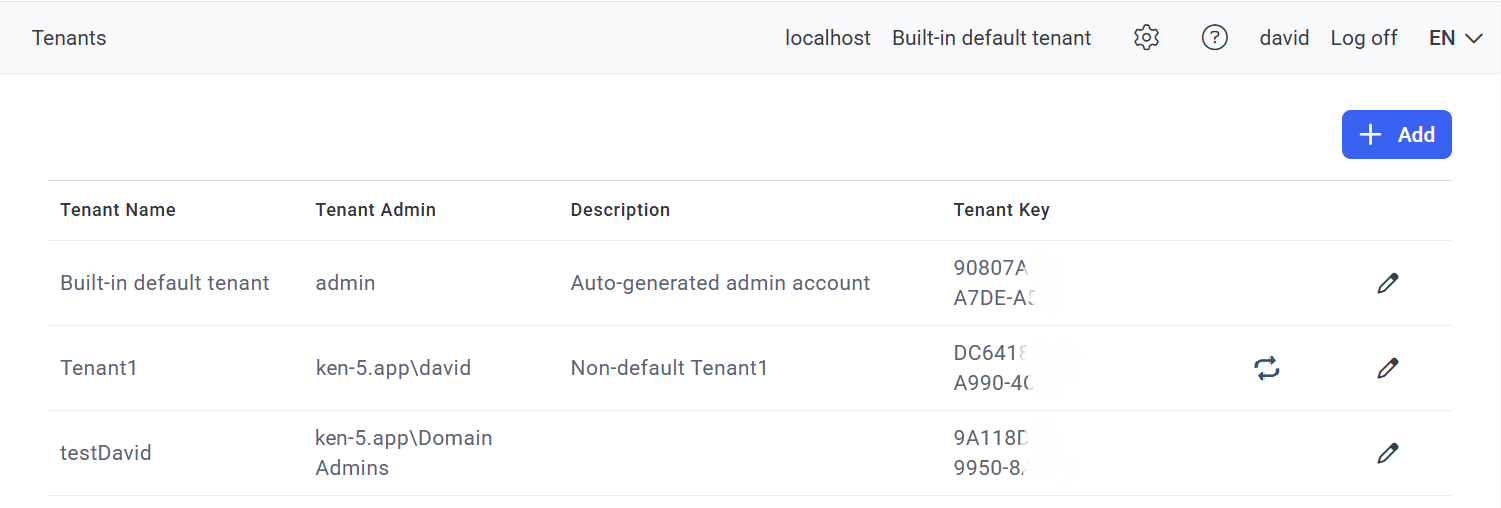
The Tenants page in Multi-Tenant mode, showing the built-in default tenant and additional tenants.
User types and what each can do
Multi-Tenant mode has three user types, with clearly partitioned capabilities. The technician runs the platform; tenant admins run their tenants; tenant users do work inside a tenant.Tenant users are end users (or junior admins) inside a tenant. They perform a subset of tenant admin actions based on the administrative permissions granted to them. They never see data from other tenants.
The technician needs the Tenant Management and System Configuration administrative permission. The technician cannot be removed from the Administrators user group.
The technician’s default login is admin and the password is set during Application Server installation.
Enable Multi-Tenant mode
1
Sign in as the technician
Sign in to the Management Tool as a user of the built-in default tenant with the Tenant Management and System Configuration administrative permission.
2
Open Configuration
Click the Configuration button at the top of the Management Tool.
3
Enable the mode
On the System Settings tab, in the Syteca Mode section, select Enable Multi-Tenant mode, then click Save at the bottom of the page. The Tenants navigation link appears in the left navigation.
4
Free up licenses for additional tenants
Click the Tenants navigation link, then click the Edit Tenant icon next to Built-in default tenant.On the Edit Tenant page, select the Licenses tab. Decrease the number of licenses granted to the default tenant in the Licenses Granted column — these freed licenses become available to grant to new tenants. Click Finish.
When Multi-Tenant mode is first enabled, all licenses are initially granted to the default tenant. You must ungrant licenses from the default tenant before you can grant them to additional tenants.
5
Add tenants
Now you can add new tenants, assigning each one its own admin, license counts, and Clients.

Enabling Multi-Tenant mode in the System Settings tab.
Related
Manage tenants
Add, edit, delete, switch to, and change licenses for tenants.
Cross-tenant access
How a tenant admin grants the technician access to their tenant.
Licensing
Grant licenses to tenants from a central pool.
Clients
How Clients are assigned to tenants at install time.