

Getting started in three steps
1
Activate the serial key
Activate online or offline — choose the tab that matches your environment.
2
Review what's enabled
View the serial key and its licenses on the Serial Key Management tab — applications, features, PAM seat licenses, and endpoint license types.
3
Assign the licenses
- Assign PAM seat licenses to PAM users — manual only.
- Assign endpoint licenses to Clients — manually or automatically.
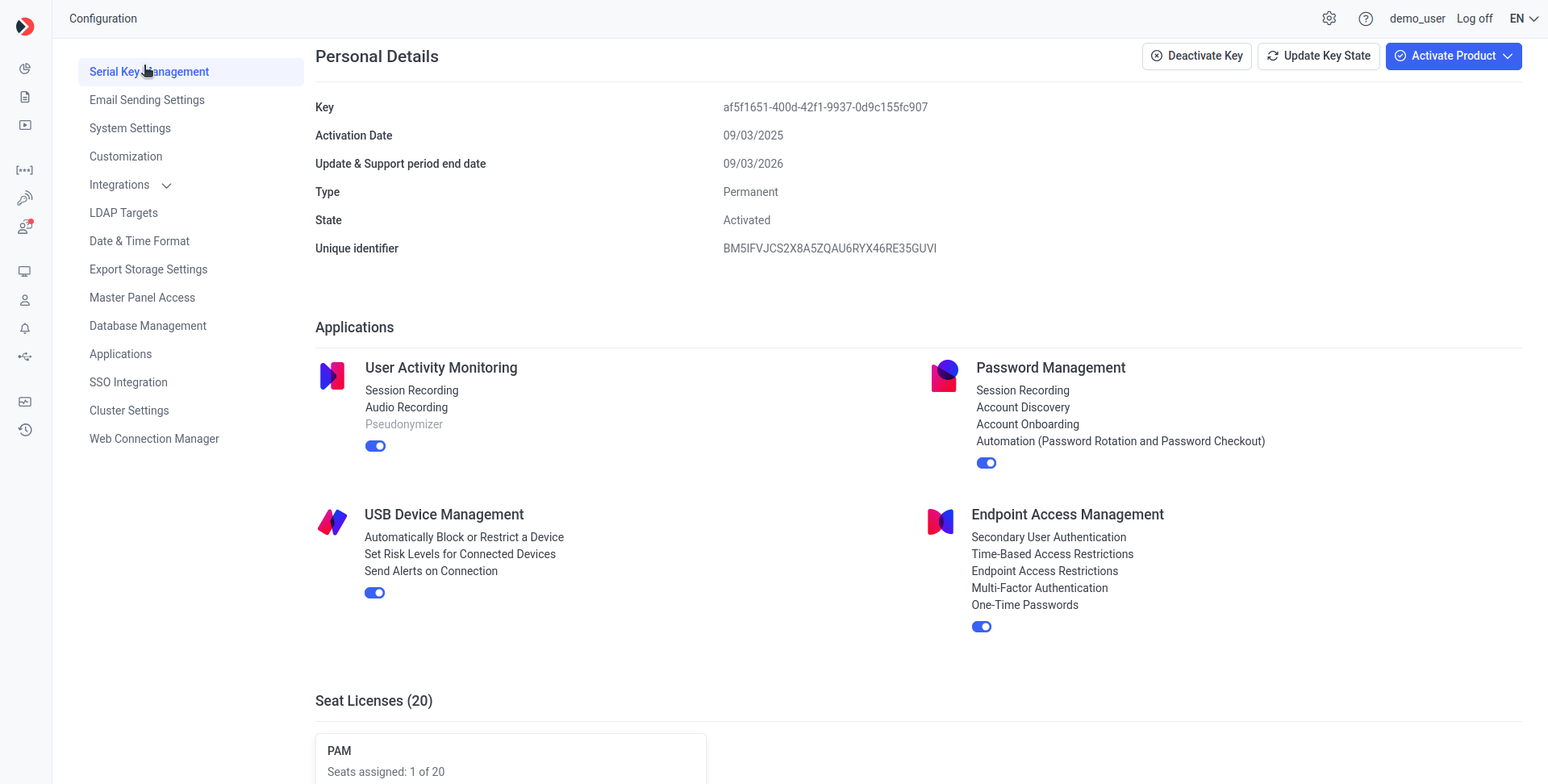
The Serial Key Management tab, showing applications, features, and license counts.
Serial key types
To request or update a serial key, contact your vendor or the Syteca Sales team. To start evaluating Syteca, request a Trial serial key on the Syteca website — it will be emailed to the address you provide.
Activating any purchased serial key automatically expires any Trial serial key.
What a serial key contains
A serial key can include any combination of four applications, each with its own features:- User Activity Monitoring (UAM) — endpoint session recording and analysis.
- Password Management (PAM) — secrets, secret sharing, and Account Discovery.
- USB Device Management.
- Endpoint Access Management.
Application toggles and features displayed in gray on the Serial Key Management tab can only be changed by your Syteca vendor updating your serial key. You enable them by purchasing them — they’re not toggled on inside the product.
The Update & Support period
The Update & Support period is the window during which your Syteca deployment can be updated to new product versions and receive Syteca Support team assistance. Treat it as the runway for your deployment — when it ends, behavior depends on the serial key type:- Permanent / Perpetual
- Subscription
- SaaS
Syteca continues to function normally, but you can no longer install product updates released after the expiry date or receive priority Support. To resume updates and priority Support, renew the serial key to extend the Update & Support period.
Permissions required
In Multi-Tenant mode, after a serial key is activated, the administrator of the built-in default tenant (the technician) must first grant licenses to each tenant. The administrator of each tenant then assigns those granted licenses to their own PAM users and Clients. See Granting licenses to tenants.
Common licensing questions
Does Syteca support floating licenses? What's the maximum number of computers one license can monitor?
Does Syteca support floating licenses? What's the maximum number of computers one license can monitor?
One license monitors one workstation at a time. Floating endpoint licensing is a core part of Syteca’s licensing model — it lets you reassign licenses between Clients in a couple of clicks, either manually or automatically, without a fixed limit on how often licenses move.
Does the price depend on the CPU per server, or the number of monitored users?
Does the price depend on the CPU per server, or the number of monitored users?
Neither. License types are assigned either to PAM users or to physical endpoint computers. Depending on the endpoint license type, a single Client can monitor an unlimited number of sessions on that computer. See license types for the available options.
Related
Manage the serial key
View, activate (online or offline), deactivate, and proxy-configure.
Assign PAM seat licenses
Assign and unassign PAM seat licenses to users.
Assign endpoint licenses
Manual and floating (automatic) endpoint license assignment.
System Health dashboards
Monitor licensed Client status (Online / Offline / Disconnected).