

Uninstalling a Client does not delete its data. After uninstallation:
- The Client stops sending new data to the Application Server.
- All previously-recorded data remains on the Application Server.
- The Client still appears in the Management Tool with Offline status.
The Client Uninstallation key
The Client Uninstallation key is a shared secret defined during Application Server installation and used by every local Client uninstall on Windows and macOS Clients. It’s a deliberate barrier: even an endpoint admin with full local privileges can’t uninstall the Syteca Client without first obtaining this key from a Management Tool user.The Uninstallation key is used for local Windows and macOS uninstall. Remote uninstall (from the Management Tool) doesn’t require it — it uses the Management Tool user’s Client Uninstallation permission instead. Linux local uninstall uses a different mechanism (the
uninstall.sh script or the RPM package manager).View or change the Uninstallation key
1
Sign in
Sign in to the Management Tool as a user with the Client Uninstallation permission for Clients.
2
Open Edit Uninstallation Key
Click Clients in the left navigation. On the Clients page, click the Clients drop-down arrow at the top, then select Edit Uninstallation Key in the menu.
3
Enter the new key
On the Custom Uninstall Key page, enter the new key in the New Key field. Re-enter it in Confirm Key.
4
Save
Click Save. The new key replaces the old one.
Uninstall Clients remotely
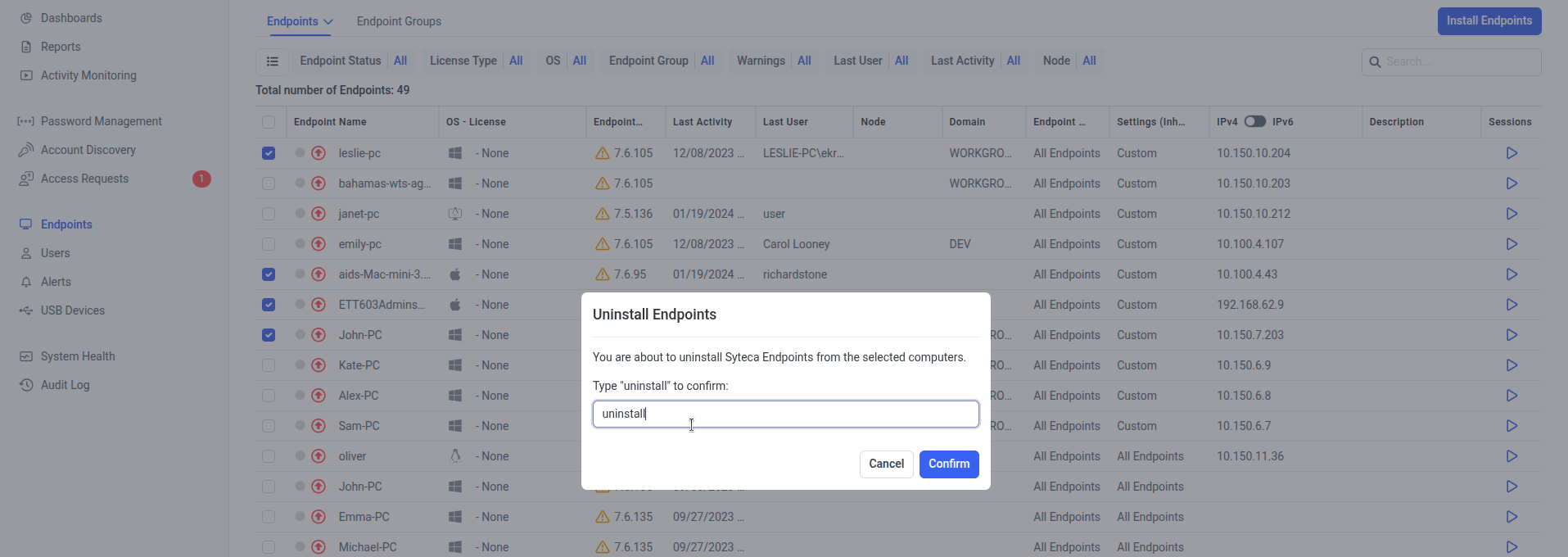
The Bulk Action uninstall confirmation — the word 'uninstall' must be typed before Confirm activates, as a safety against accidental mass uninstalls.
Requires the Client Uninstallation permission for Clients. The Uninstall Client button won’t appear if you don’t have the permission or if the Client is already uninstalled.
- One Client (from Edit Client)
- Multiple Clients (Bulk Action)
Use this when you have the Client open already, or want to confirm details before uninstalling.
1
Open the Client
On the Clients page, find the Client and click its name in the Client Name column.
2
Click Uninstall Client
On the Editing Client page → Properties tab, click Uninstall Client at the bottom of the page.
3
Confirm
Click Uninstall in the confirmation. The Client is uninstalled — it stops sending data and shows as Offline in the Clients list.
Uninstall Clients locally
Local uninstall happens on the endpoint, using OS-native tools. The Uninstallation key is required for Windows and macOS (but not Linux). Local uninstall is useful when:- The endpoint is being decommissioned and you want to clean it up before reimaging.
- The Application Server is unreachable from the Client (e.g. the Client is on a network the Application Server can’t connect to).
- You need to uninstall as part of a scripted deployment workflow.
- Windows
- macOS
- Linux
Local Windows uninstall uses the
UninstallClient.exe binary in the Client install directory.1
Open an elevated command prompt
Run
cmd.exe as administrator.2
Navigate to the Client install folder
Change directory to the Client installation path. The default is:
3
Run the uninstall command
Run:Replace
<uninstallation_key> with the actual key from the Management Tool. Press Enter.In SaaS only: the Uninstallation key needs double quotes around it:
Related
The Clients page
Inventory of every Client — including Offline ones that have been uninstalled.
macOS Hidden Client
Stealth-mode macOS Client — same uninstall procedure as the standard macOS Client.
Client permissions
The Client Uninstallation permission required for remote uninstall.
Delete Clients
Remove uninstalled Clients (and their recorded data) from the Application Server.