

1
Open Customization Settings
Click Configuration, then select the Customization tab.
Custom Logo Settings
Select Use a custom logo instead of the Syteca logo to replace the default logo shown on the Client during secondary user authentication, blocking, and similar prompts. Click Choose File to upload it.Must be
.bmp format, no larger than 525 × 40 pixels.Custom Icon When Recording Is in Progress
If Display icon when recording is in progress is enabled, select Use a custom icon instead of the Syteca icon to replace the default always-on-top recording indicator with a custom graphic.Must be
.bmp, .jpg, or .png format, no larger than 800 × 240 pixels.Custom Reports Settings
Add a custom Header Text and Footer Text to generated reports (up to 1,000 characters each), and optionally select Use a custom logo instead of the default logo for reports.Must be
.bmp, .jpg, or .png format, no larger than 300 × 85 pixels.Custom Email Subjects
Define the subject lines used in Syteca’s email notifications. For single-alert notifications, use these variables:#name (alert name), #user (user name), #pc (endpoint name), #priority (alert priority), #OS (endpoint OS).
For multiple-alert notifications, only #number (count of alerts) is available.
Click Restore Default to revert to the default subject lines.
Custom Login Message for Blocked Users
Define the message shown in a pop-up on the Client machine when a user is blocked. Default: “You have been blocked. Contact your system administrator.”Two-Factor Authentication
Define the instructional message shown in the QR code pop-up the first time a user logs in after 2FA is enabled on their Client - only shown to users not manually added on the Two-Factor Authentication tab of User Access. Default: “Two-factor authentication is enabled on your workstation. Open your authenticator app (Google Authenticator or Microsoft Authenticator) and scan the code before closing this window. On login, you will be prompted to enter the code from your app.”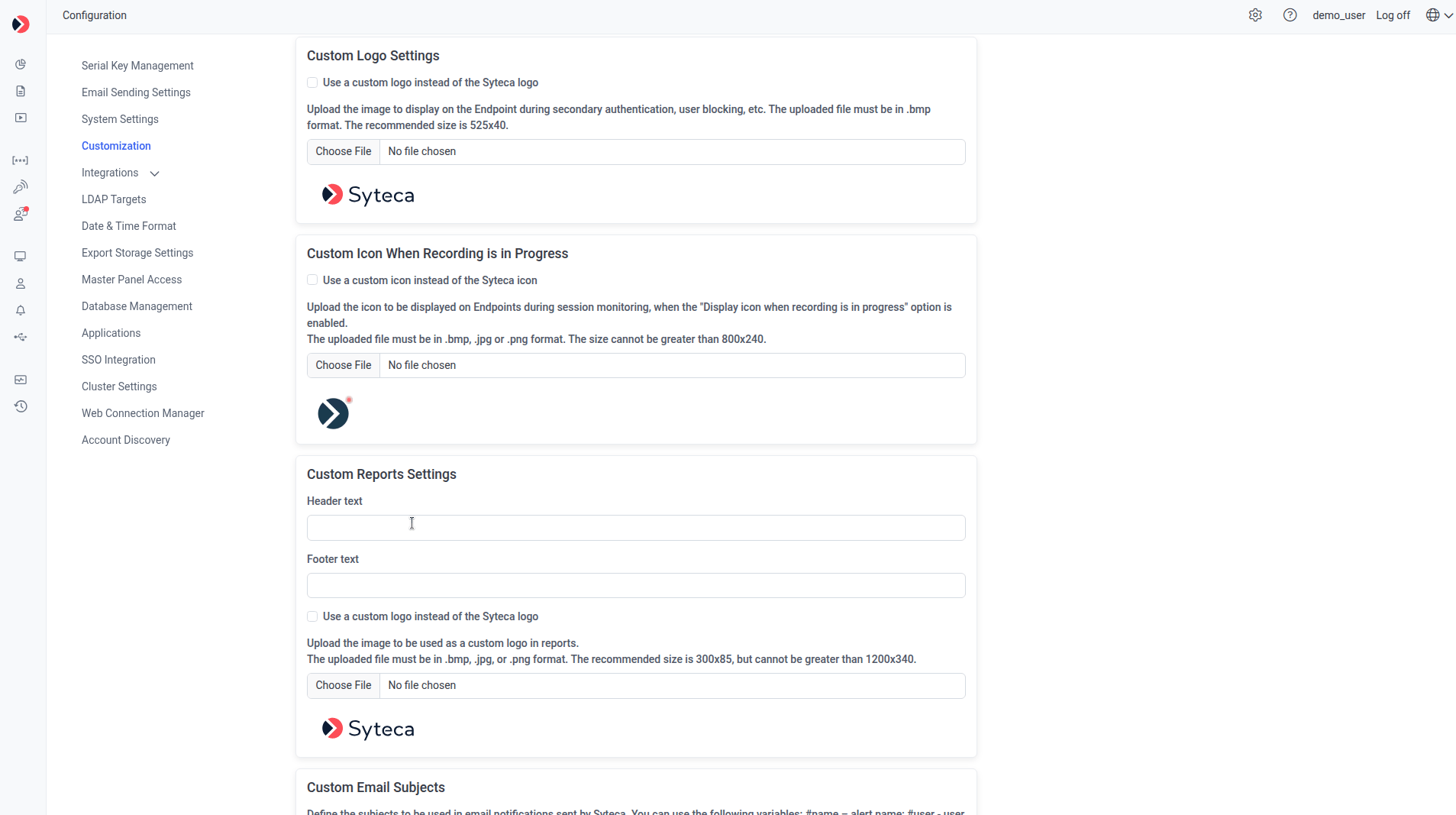
The Customization tab.
In Multi-Tenant mode
A tenant admin sees only two of the sections above:- Custom Email Subjects - same as described above.
- Two-Factor Authentication - same as described above.
Related
Recording indicators
The on-screen recording icon this page can re-brand.
Two-factor authentication
Full 2FA setup and management.
System settings
Other Configuration page settings.