

GUI monitoring (X Window System) is optional and is enabled during installation. See Installing Linux Clients.
For configuration parameters and uninstallation, see the dedicated pages under this section.
Remote SSH and local terminal sessions
In SSH and local terminal sessions, the Linux Client records:- User actions - keystrokes (including commands and parameters executed).
- Commands executed in any scripts that run.
- System function calls.
- System responses - command output from the terminal.
Session lifecycle
- A new monitoring session starts every time a remote SSH session is opened.
- The maximum duration of one SSH session is 24 hours - all live sessions terminate at midnight, change from Live to Finished, and new live sessions start automatically.
- A session changes to Finished when the remote SSH terminal is closed or the Linux Client is disconnected from the Application Server. When the Client reconnects, the session returns from Finished to Live.
- Even if the license is unassigned from the Linux Client or the Client process is killed, monitoring of in-progress sessions continues until the remote SSH terminal is closed.
- If the Client ever stops, the EkranAgent watchdog process restarts it automatically.
Remote X-forwarded sessions can also be monitored - slightly differently, as child sessions of a remote SSH parent session.
GUI (X Window System) sessions
When GUI monitoring is enabled, Syteca records local or remote sessions started via the GUI - screen captures, application names, activity titles, and activity times.- The Client starts monitoring after a user opens a new application window.
- User activity is recorded every 10 seconds.
- A new session starts every time the computer is restarted.
- The maximum duration of one local session is 24 hours - all live sessions terminate at midnight, change from Live to Finished, and new live sessions start automatically.
- If the user has multiple monitors, the Linux Client records screen captures from all of them.
- If the Client ever stops, the EkranAgent watchdog process restarts it automatically.
Read the Client status
Up-to-date Client
If automatic update is enabled, the Client updates itself as soon as it connects to a newer Application Server.Not-up-to-date Client
If the Update Client automatically checkbox is not selected for a Client, it must be updated manually. Such Clients appear with a gray (offline) status icon in the Clients list.Clients that aren’t up to date continue to monitor user activity and send data to the Application Server as normal. After an update, the monitored data recorded before the update remains accessible.
Yellow status icon - Rescue mode
If a Linux Client appears with a yellow status icon in the Clients list, it’s in Rescue mode - the Client is experiencing some issue. Rescue-mode Clients can be Online or Offline (hover the icon to see which).1
Open the Clients page
Sign in to the Management Tool and click Clients in the left navigation.
2
Select the affected Clients
Select the checkbox next to each Client showing the yellow Rescue-mode status icon.
Use the Search box and filters at the top of the Clients tab to find specific Clients.
3
Run Troubleshoot Rescue Mode
Click Bulk Action in the top left and choose Troubleshoot Rescue Mode.
If at least one Client anywhere has an issue, a yellow exclamation mark also appears next to the Clients navigation link in the left menu.
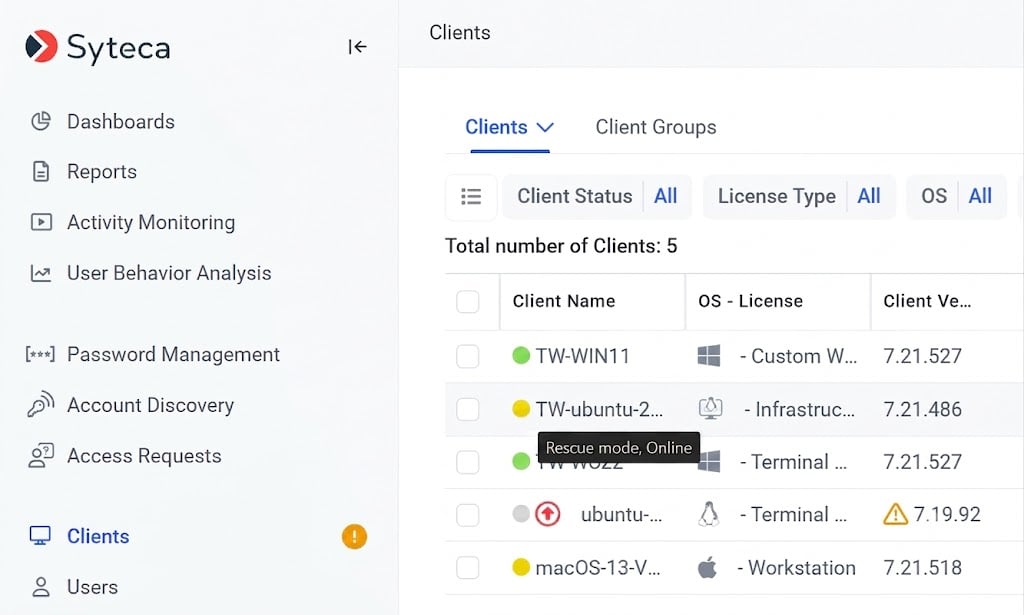
A Linux Client in Rescue mode, with the Bulk Action menu showing Troubleshoot Rescue Mode.
Check the Client from the Linux command line
The Read the Client status section above covers the status view in the Management Tool UI. On the Linux machine itself, use the Terminal to verify that the Client service and its processes are running. This is the first diagnostic step when a Linux Client does not appear on the Clients page of the Management Tool after installation.Check the Client service status
Run the following command in the Terminal:active (running) state along with the service description and its process IDs.
Check the Client processes
To confirm that the Client processes are running, list the running processes and filter to Syteca:ekran in their command line. The exact number of processes depends on the Client version and configuration; the absence of any matching process indicates the Client is not running.
If the Client service reports
active (running) but the Client still does not appear on the Clients page of the Management Tool, check network connectivity from the Linux machine to the Application Server and confirm that the Application Server hostname or IP resolves correctly from the Linux machine.Related
Update Clients
Automatic and manual update procedures for any OS.
Windows Clients
The Windows equivalent - local and multiple concurrent sessions.
macOS Clients
The macOS equivalent - including required system permissions.
System Health dashboards
Online / Offline / Disconnected Client counts.