

This task requires both the Client Installation and Management and License Management administrative permissions.
How endpoint licensing works
- One license per Client. Each Client can have at most one endpoint license assigned at a time.
- Automatic on first connection. The first time a Client connects to the Application Server, the license type matching its operating system is assigned automatically. If for any reason it isn’t, assign the license manually.
- Offline Clients can receive licenses. A license assigned to an offline Client applies as soon as the Client comes online.
- Uninstalling frees licenses. When a Client is uninstalled, its license returns to the available pool.
See Manage the serial key for the current count of available licenses per type.
Assign endpoint licenses manually
You can assign or change one Client’s license while editing it, or bulk-assign the same license type to many Clients at once.- One Endpoint
- Multiple Endpoints (bulk)
1
Open the Client
Click Endpoints in the left navigation. On the Clients tab, click the Client’s name in the Client Name column.
Use the Search box and filters at the top of the tab to find a specific Client.
2
Set the license
On the Editing Client page, on the Properties tab, in Client Properties, choose the license type in the Assigned License drop-down list. To remove the license, select None.
To change a Client’s license type, just pick a new one — the current license is unassigned automatically.
3
Finish
Click Finish in the bottom right.
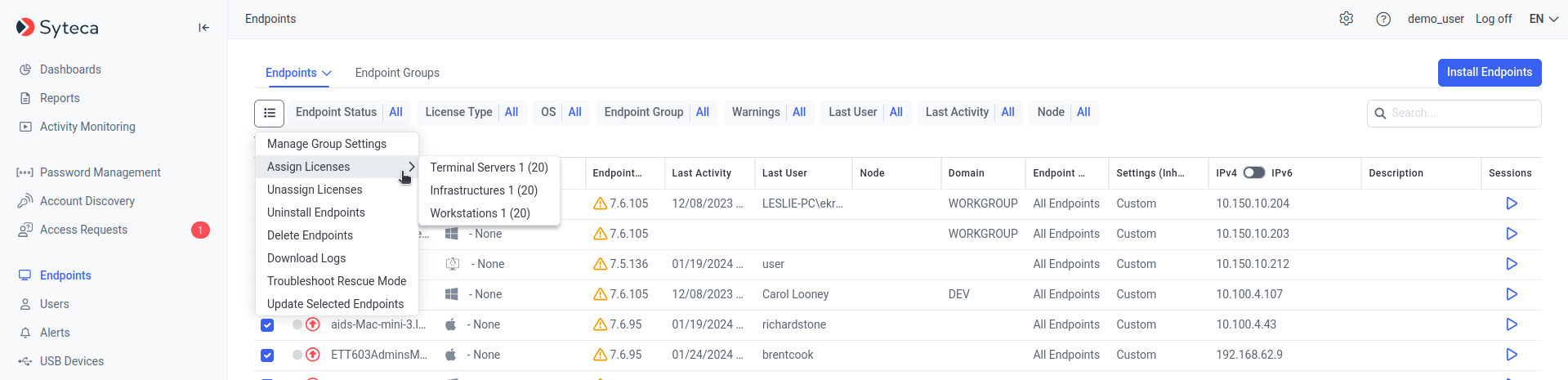
Bulk-assigning endpoint licenses on the Clients tab using the Bulk Action menu.
Automatic (floating) license assignment
Syteca offers floating endpoint licensing — licenses are reassigned between Clients automatically as Clients become unused or new virtual desktops come online. Two automatic mechanisms work alongside the manual approach:Mechanism 1 — Delete offline Clients without sessions
Not available in SaaS.
Mechanism 2 — Golden image (for virtual desktops)
Floating licensing can dynamically reassign licenses across virtual desktops deployed from a golden image. When a new Windows-based desktop is created, the Client is registered automatically and pulls a license from the pool. When the desktop shuts down, the license returns to the pool. The result: for VMware or Citrix monitoring, you only need enough Syteca Workstation endpoint licenses to cover the peak simultaneous virtual desktops, not the total ever deployed. For setup, see Enabling Golden Image Mode for the Application Server.Multi-Tenant mode — granting licenses to tenants
Not available in SaaS. This applies only when Multi-Tenant mode is enabled.
Granting licenses to tenants requires the Tenant Management and System Configuration administrative permission, which only the technician has.
View licenses granted
1
Open Serial Key Management
Sign in as the technician, click Configuration at the top of the Management Tool, then select the Serial Key Management tab.
2
Open the Licenses Granted sub-tab
Click Licenses Granted. The grid lists every tenant with these columns:
Change licenses granted to a tenant
To change the number of PAM seat licenses or endpoint licenses granted to a tenant, click the Edit Tenant icon next to that tenant on the Licenses Granted sub-tab and adjust the counts. See Changing the number of licenses granted to tenants for the full procedure.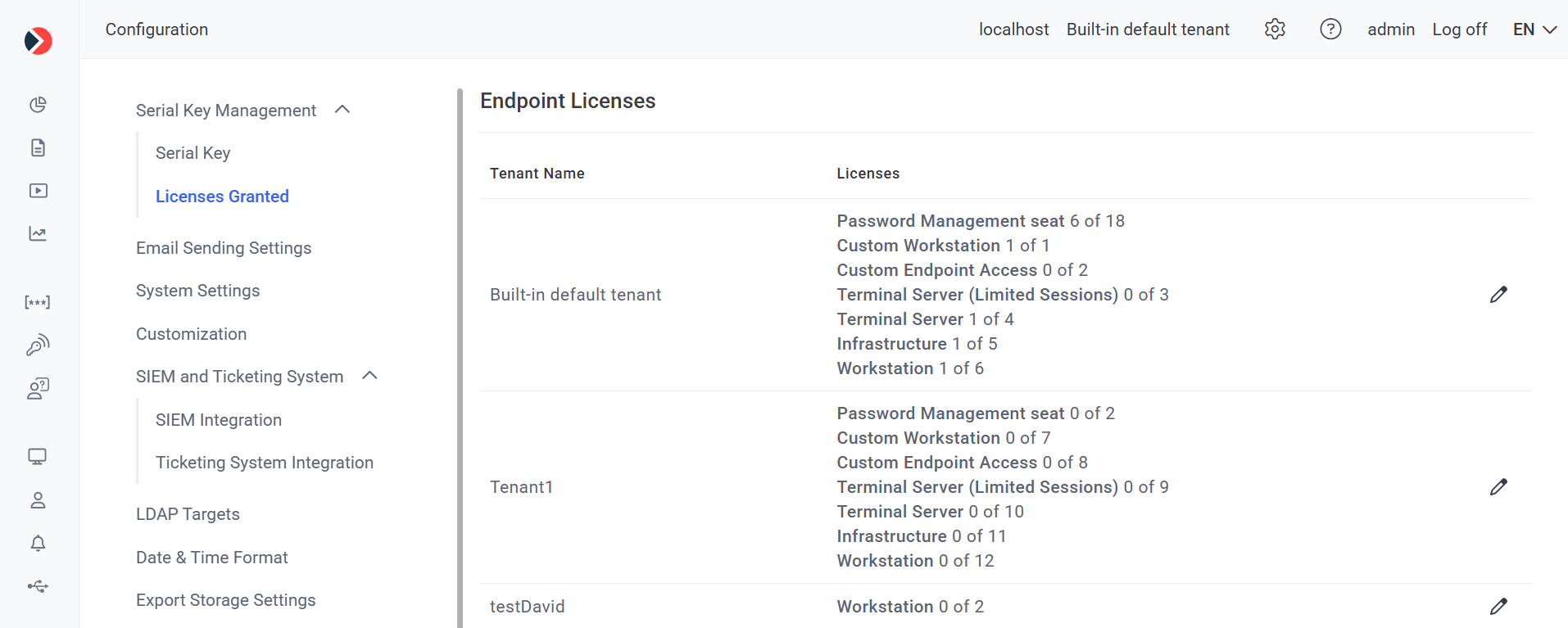
The Licenses Granted sub-tab, where the technician grants licenses to each tenant.
Related
Licensing overview
Serial key types, contents, and the Update & Support period.
Manage the serial key
View, activate, deactivate, and proxy-configure the serial key.
Assign PAM seat licenses
Assign PAM seat licenses to users.
System Health dashboards
Monitor licensed Client status (Online / Offline / Disconnected).