

Client description
The Client description is used for additional information about a Linux Client, making it easier to find in the Clients list - Clients can be filtered by description as well as by name.Similar parameters are also available for Windows Clients and macOS Clients.
1
Open the Client
On the Editing Client page, select the Properties tab.
2
Edit the description
In the Client Properties section at the top, edit the Description field.
3
Save
Click Finish.
Only users with the Client Configuration Management permission can edit the Client description.
Command output limiting
Command output limiting reduces database space by capping the total amount of command output response data recorded per command, in remote SSH sessions.1
Open the Monitoring tab
On the Editing Client / Editing Client Group page, select the Monitoring [Linux] tab.
2
Set the limit
In the Command Output Limiting section, set The Command Output limit (KB). Default: 500. A value of 0 disables the limit entirely.
A new limit only applies to SSH sessions started after the change - sessions already in progress keep the previous limit.
After updating to Syteca 7.0.50 or later (which introduced this parameter), existing Clients default to 500 KB automatically.
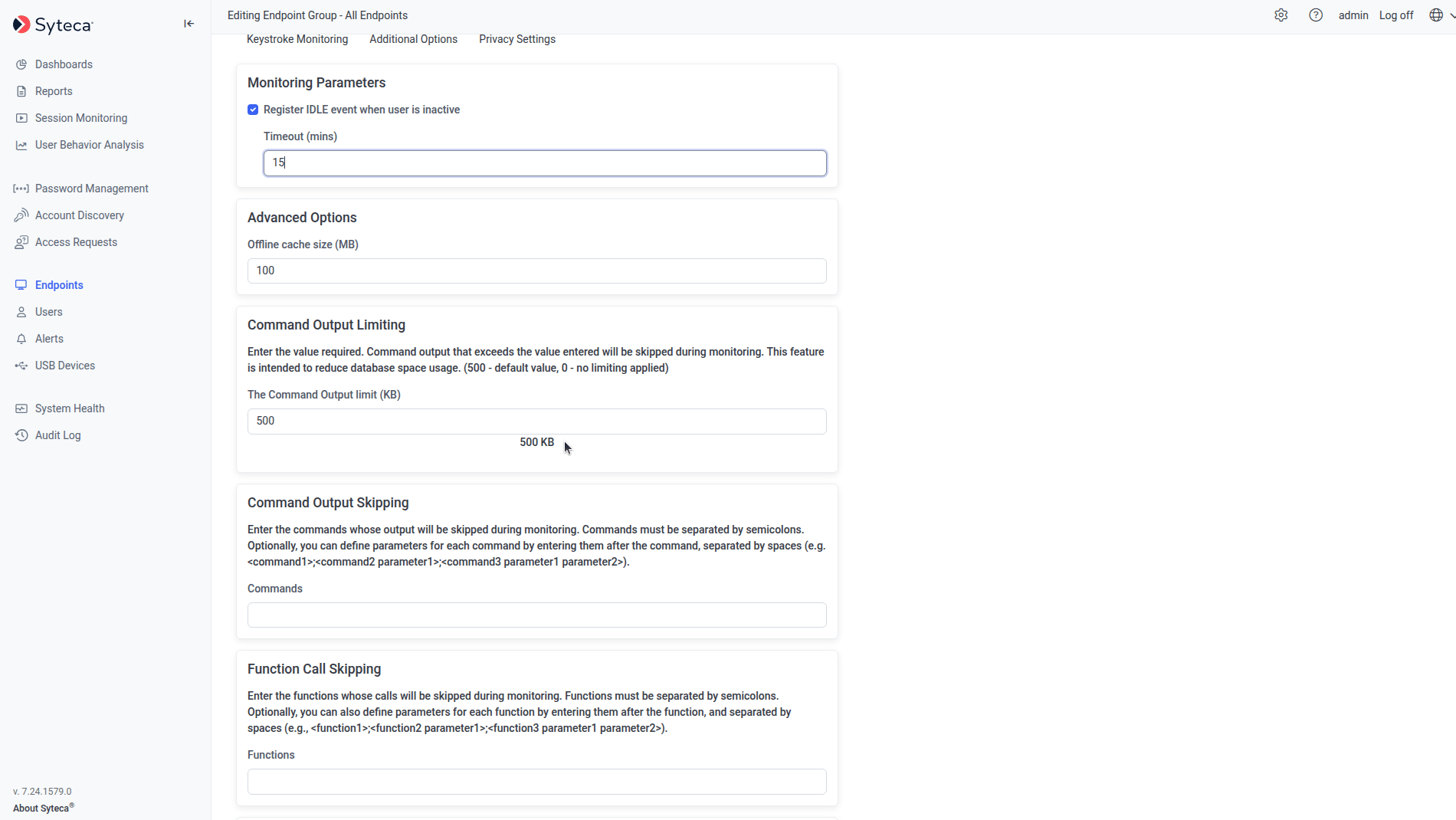
The Command Output Limiting section on the Monitoring [Linux] tab.
Command output skipping
Command output skipping reduces the amount of data received by defining specific commands (optionally with parameters) whose output isn’t recorded at all.1
Open the Monitoring tab
On the Editing Client / Editing Client Group page, select the Monitoring [Linux] tab.
2
List the commands to skip
In the Command Output Skipping section, enter the commands in the Commands field, separated by semicolons. Add parameters after a command, separated by spaces - for example
<command1 parameter1>;<command2>;<command3 parameter1 parameter2>.Function call skipping
Function call skipping reduces the amount of data received by defining specific system function calls that aren’t recorded.1
Open the Monitoring tab
On the Editing Client / Editing Client Group page, select the Monitoring [Linux] tab.
2
List the function calls to skip
In the Function Call Skipping section, enter the function calls, separated by semicolons. Add parameters after a function call, separated by spaces - for example
<function1>;<function2 parameter1>;<function3 parameter1 parameter2>.Related
Linux Clients
Full Linux Client installation and configuration reference.
Filtering parameters
Filter which activity gets recorded, rather than limiting output volume.
Keystroke logging
Configure keystroke and user input monitoring.
Linux Client Troubleshooting
Diagnose SSH and monitoring issues on Linux Clients.