

Stop data walking out the door on a thumb drive
A single USB stick can carry every customer record, every line of source code, every signed contract you have. It bypasses the network, leaves no log on the firewall, and once it’s in someone’s pocket the data is gone. Removable media is one of the oldest data-exfiltration paths and still one of the hardest to close — because some users genuinely need it, and you can’t just glue every port shut. Tools that only block USB ports outright are too crude for most real environments: the finance team needs their license dongle, the design lead needs to plug in a Wacom tablet, the CEO doesn’t want to call IT every time they bring a presentation in on a stick. Freeauditd USB rules give you a log entry, but no block, no approval workflow, and no record of what was on the drive.
Syteca USB Device Control sits in the middle: every USB device plugged into a Windows or macOS endpoint is automatically detected and logged to the Session Viewer, and you add rules for the device classes you want to alert on, block, or gate behind administrator approval. Permitted devices (the license dongle, the Wacom, the CEO’s USB-C dock) go on an exceptions list by Hardware ID so they keep working. The result: an auditable record of every removable device, a hard block on what shouldn’t be allowed, and a controlled escape hatch for the exceptions.
Use USB Device Control when you need to:
- Prevent data exfiltration to USB drives, external SSDs, and SD cards — at the kernel level, not via Group Policy.
- Get a continuous audit log of every USB device plugged into every monitored endpoint.
- Block specific device classes (mass storage, modems, wireless adapters, vendor-specific) without breaking keyboards, mice, and approved peripherals.
- Offer a controlled “request access” workflow for legitimate one-off USB use, instead of permanent allow lists.
- Meet the removable-media control requirements in PCI DSS, HIPAA, NIST 800-53, ISO 27001, and SOC 2.
How USB monitoring works
Syteca offers two layers of USB detection, which work together.
In short: automatic monitoring gives you the always-on audit log; rule-based monitoring gives you the targeted alerting, blocking, and approval workflow on top.
Automatically monitored devices
When automatic monitoring is on (the default for Windows Clients), the following USB device types are detected and logged to the Session Viewer with no further configuration:- External magnetic hard drives
- External optical drives (CD, DVD)
- Portable flash memory devices and USB drives
- Solid-state drives
- USB-to-memory-card adapters
- Digital cameras
- Digital audio and portable media players
- Card readers
- PDAs
- Mobile phones
USB device classes available for rule-based monitoring
When you add a USB monitoring rule, you choose which device classes the rule applies to. Each class covers a range of device types: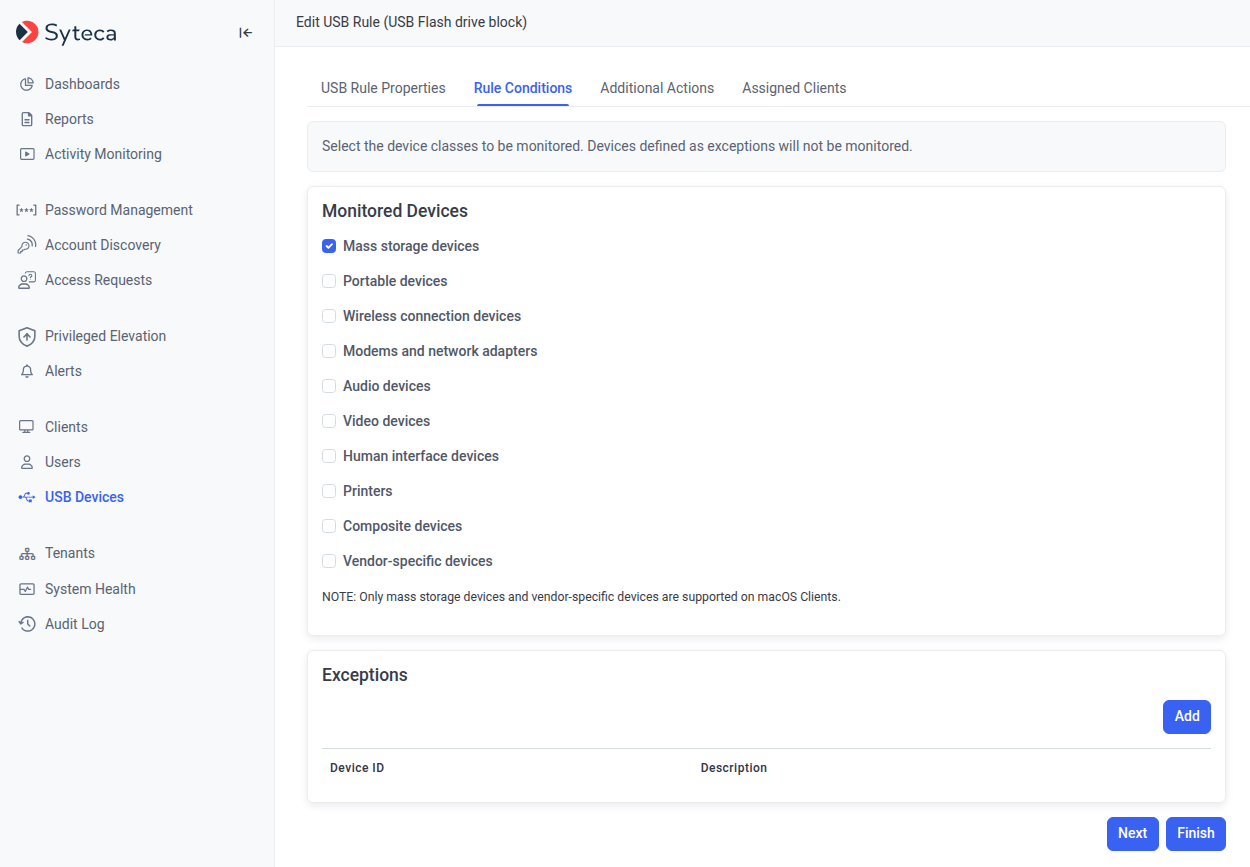
The USB device class selector on the Rule Conditions tab when adding a rule.
Find a device’s class (Windows)
To identify what device class a specific USB device reports as — useful when planning rules and exceptions — view its Compatible IDs in Device Manager:1
Plug the device in
Plug the USB device into your Windows computer.
2
Open Computer Management
Right-click This PC and select Manage.
3
Open Device Manager
Click the Device Manager node (under System Tools).
4
Expand the USB controllers
Expand the node with the computer’s name, then expand Universal Serial Bus Controllers.
5
View the device's class
Right-click the device, choose Properties, select the Details tab, then select Compatible Ids in the Property drop-down. The class appears in the Value field.
The USB Devices page
Once rules are added, they’re listed on the USB Devices page in the Management Tool. The grid shows:
Rules can only be added or edited by users with the administrative Client Installation and Management permission.
Related
USB monitoring rules
Add, edit, delete rules, plus exceptions and finding the Device Hardware ID.
USB access approval
Configure and use the request-and-approve workflow for blocked devices.
Session monitoring
See USB events alongside the recorded session in the Session Viewer.
Alerts
Where USB rule events appear alongside other endpoint alerts.