

What recording is really for: watching what happened
Capturing every screen, keystroke, and click sounds powerful — but the actual value of session monitoring is the moment someone watches a recording. A weekend security incident, an HR dispute, a compliance investigation, a contractor’s questionable activity log — all of them turn on a single question: show me exactly what they did. If your monitoring tool can’t make that easy, you’ve been paying to fill a database. Many monitoring tools either record at intervals so choppy that the recording is hard to follow, or record continuously but make playback a wall of frames with no synchronized metadata. Forensic analysts then fall back to manually correlating screen captures with separate keystroke logs and alert events, which is exactly the friction recording was supposed to eliminate. The Syteca Session Viewer is built around making the watch step trivial. Screen captures (or smooth video) play in the main pane, with the Metadata grid on the right showing every recorded action synchronized to the playback, and the Details area at the bottom showing the exact keystrokes, clipboard text, USB events, URLs, and alerts for the moment you’re paused on. Click any record in the grid and the player jumps to that moment. Click a Magnifier to zoom in for forensic detail. Click Live to watch a session in real time as it’s happening. Bookmark the exact frame as a URL you can share with HR, legal, or your incident response team.The Session Viewer gives you:
- Synchronized playback of screen captures (or smooth video), metadata, keystrokes, clipboard text, USB device info, URLs, and alerts — all in one view, all timeline-linked.
- Smooth video playback in Full Motion Capture mode, or detailed interval-based playback in Interval Capture mode.
- Live session viewing in real time — watch a session as it’s happening, refreshing automatically with new data.
- Forensic-grade detail via the Magnifier for fine-grained inspection.
- Multi-monitor support — switch between recorded monitors in sessions where the user had multiple displays.
- Shareable URLs — link directly to a specific moment in a session for sharing with HR, legal, or incident response teams.
- Direct action from playback — block the user, generate a Forensic Export, save a screen capture, or jump between linked midnight-restarted sessions.
Sessions only contain screen captures or video if the Enable screen capture recording along with user activity recording option is enabled on the Client. If it’s not enabled, the Metadata and Details panes still populate but the main playback pane is empty. See Recording parameters.
Open a session in the Session Viewer
Sign in to the Management Tool, click Activity Monitoring, and on the Client Sessions tab, click the Play icon next to a session — or just double-click anywhere on the session row. The Session Viewer opens with the session loaded.The three-pane interface
By default, the Session Viewer divides into three panes:What’s in the Metadata grid
Columns depend on the Client OS: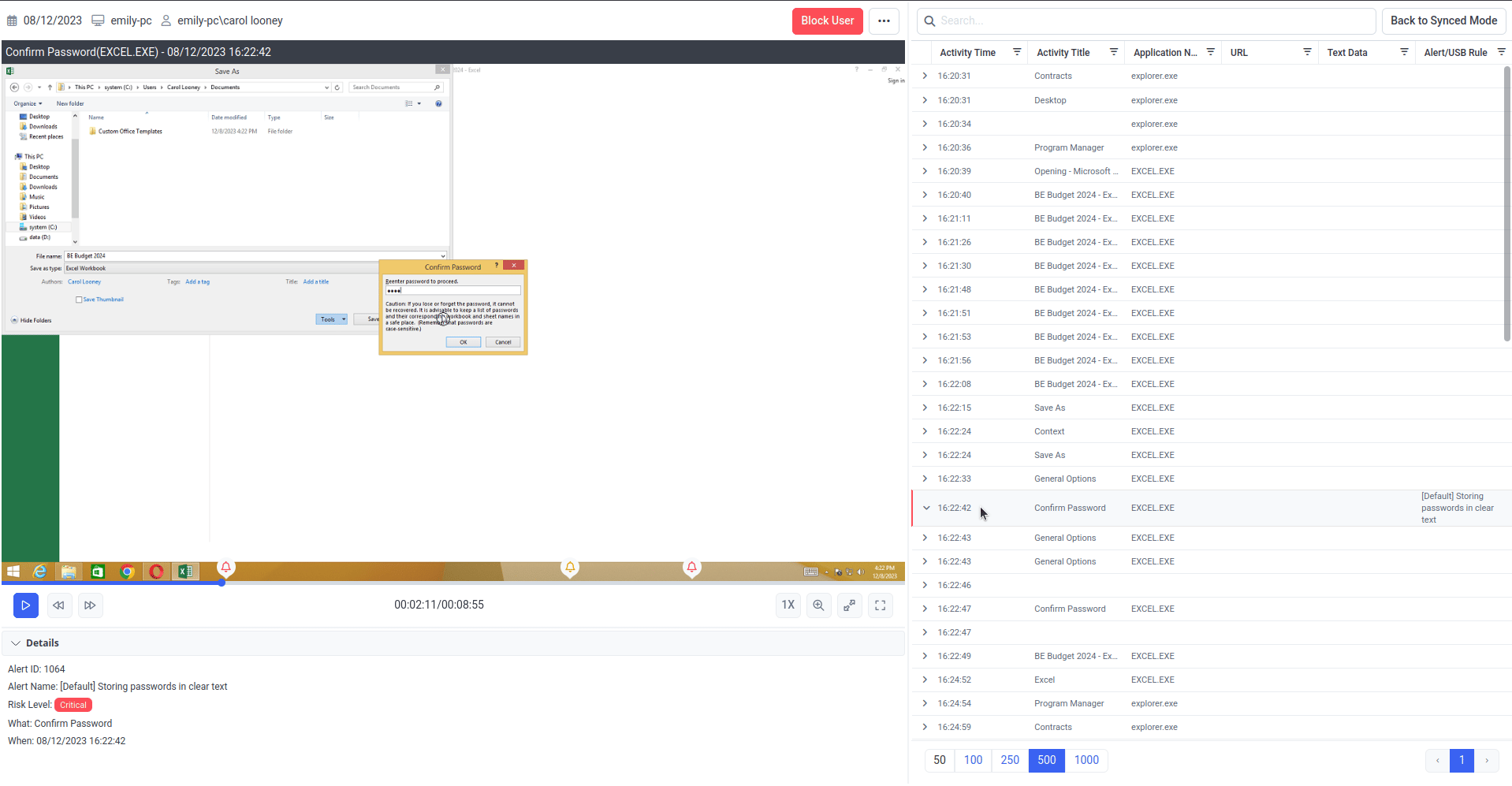
The Session Viewer default layout — Session Player, Metadata grid, and Details area.
When Full Motion Capture video mode is used instead of Interval Capture screen captures, the interface and available controls differ in several places — those differences are flagged inline below.
Control playback
These controls live in the Session Player pane. Most have keyboard equivalents that work in Full Screen mode.Switch monitors in multi-monitor sessions
If the recorded user had multiple monitors connected, click the Tools button (top-right of the Session Player), select Display Screens, then pick All, 1, 2, 3, 4, etc.Resize the panes
Drag the boundaries between the Session Player, Metadata grid, and Details area to resize them. The Layout button (described above) toggles between the default layout and an expanded-player layout.Zoom into detail with the Magnifier
For close inspection of a recorded screen capture — reading text in a small terminal window, examining the contents of a tooltip, verifying what a user clicked on — use the Magnifier.1
Open the Magnifier
Click the Magnifying Glass icon in the bottom right of the Session Player. A rectangular Magnifier window appears in the top right of the page.
2
Move it where you need it
Use the mouse to move the Magnifier rectangle over the area you want to inspect. The magnified view follows the cursor.
3
Close the Magnifier
Click the Magnifying Glass icon again to turn the Magnifier off.
Watch a session in real time
For live sessions still in progress (those with the Live icon in the Finish column on the Client Sessions tab), the Session Viewer can play them in real time as new data arrives from the Client.1
Open a live session
Click the live session on the Activity Monitoring page to open it in the Session Viewer.
2
Switch to Live mode
Click the Live button at the top of the Session Player. The session plays in real time, zoomed in, with the Metadata grid and Details area hidden.
3
Watch new data appear
Whenever new monitored data is received from the Client, the Session Player refreshes automatically.
Live playback is not currently supported in Full Motion Capture mode.
Bookmark a specific moment
The Session Viewer can produce a URL that opens directly to the exact frame you’re paused on — useful for sharing evidence with HR, legal, or incident response without making them scroll through an entire session to find the relevant moment.1
Pause at the moment
Use Previous/Next, the Metadata grid, or playback controls to land on the exact moment you want to share.
2
Open the Tools menu
Click the Tools icon in the top-right of the Session Player, then select Current URL.
3
Copy the URL
A pop-up appears with the URL — copy it and close the pop-up.
4
Share and use it
Anyone with Management Tool access who pastes the URL into their browser will open the Session Viewer at exactly that moment. Browser bookmarking works too — bookmark significant moments in long investigations.
If the recipient isn’t signed in, the login page opens first; after signing in, they land at the bookmarked moment.
Other actions from the Session Player
The Tools menu (top-right of the Session Player) also includes:Related
The Sessions List
Finding the session you want before opening it in the Viewer.
Recording parameters
Configure what gets recorded — Interval Capture vs Full Motion Capture, multi-monitor, frame rate.
Alerts
The alert events displayed inline in the Metadata grid and Details area.
Sensitive Data Masking
How sensitive data appears (blurred or asterisked) in the Session Viewer.