

Applies to Windows Clients only. Configure these on the Editing Client / Editing Client Group page, Additional Options tab.
Screen capture throttling (ms)
Limits how frequently screen captures are recorded within a session. For example, a value of2000 records at most one screen capture every 2 seconds. 0 (the default) applies no limit - captures follow the configured user activity recording parameters with no throttling.
In this example, throttling reduces bandwidth usage by roughly 75%.
Screen captures tied to alert events are always recorded, regardless of this setting. When viewing a live session, captures update at the throttled frequency. Not supported in Full-Motion Capture mode.
Batch registration timeout (ms)
Controls how often batched monitoring data is sent to the Application Server, instead of sending each activity record immediately. Default:10000 ms. Maximum for terminal servers: 1000 ms.
Not supported in Full-Motion Capture mode.
Chunk size (minutes)
Sets the duration of each video segment before it’s sent to the Application Server. Range: 1–10 minutes, default 1 minute.Not supported in Interval Capture mode.
Prevent loading hooks into the following applications
Excludes specific applications from Client hook injection (used for file upload, keystroke, and RDP connection monitoring, among others) - useful if an application has performance issues or crashes because of it. Enter process names as shown in Task Manager, without file extensions, separated by semicolons (for exampleWINWORD;EXCEL).
Reduce screen capture size by (%)
Shrinks recorded screen captures by the specified percentage before sending them, trading image quality for size. Default:30, which balances readable quality against database growth.
Screen captures already recorded aren’t affected retroactively. Doesn’t apply when Capture active window only is enabled, or in Full-Motion Capture mode.
Screen capture compression level (1–19)
Controls compression applied to screen captures before sending.19 is maximum compression (least disk space, more CPU on the Client). 1 is minimum compression (more disk space, less CPU).
Not supported in Full-Motion Capture mode.
Agent memory limit (0 = disabled)
Intended to cap the memory used by the Client service process, sending monitored data to the Application Server more frequently to compensate.Support secure browsers by disabling some monitoring features
Disables some Client hooks to allow secure browsers to function. Trade-off: some monitoring features stop working correctly - detecting certain file upload operations, keystrokes in RDP sessions, active window switching, monitoring language/layout changes, and keystrokes using Polish diacritical characters.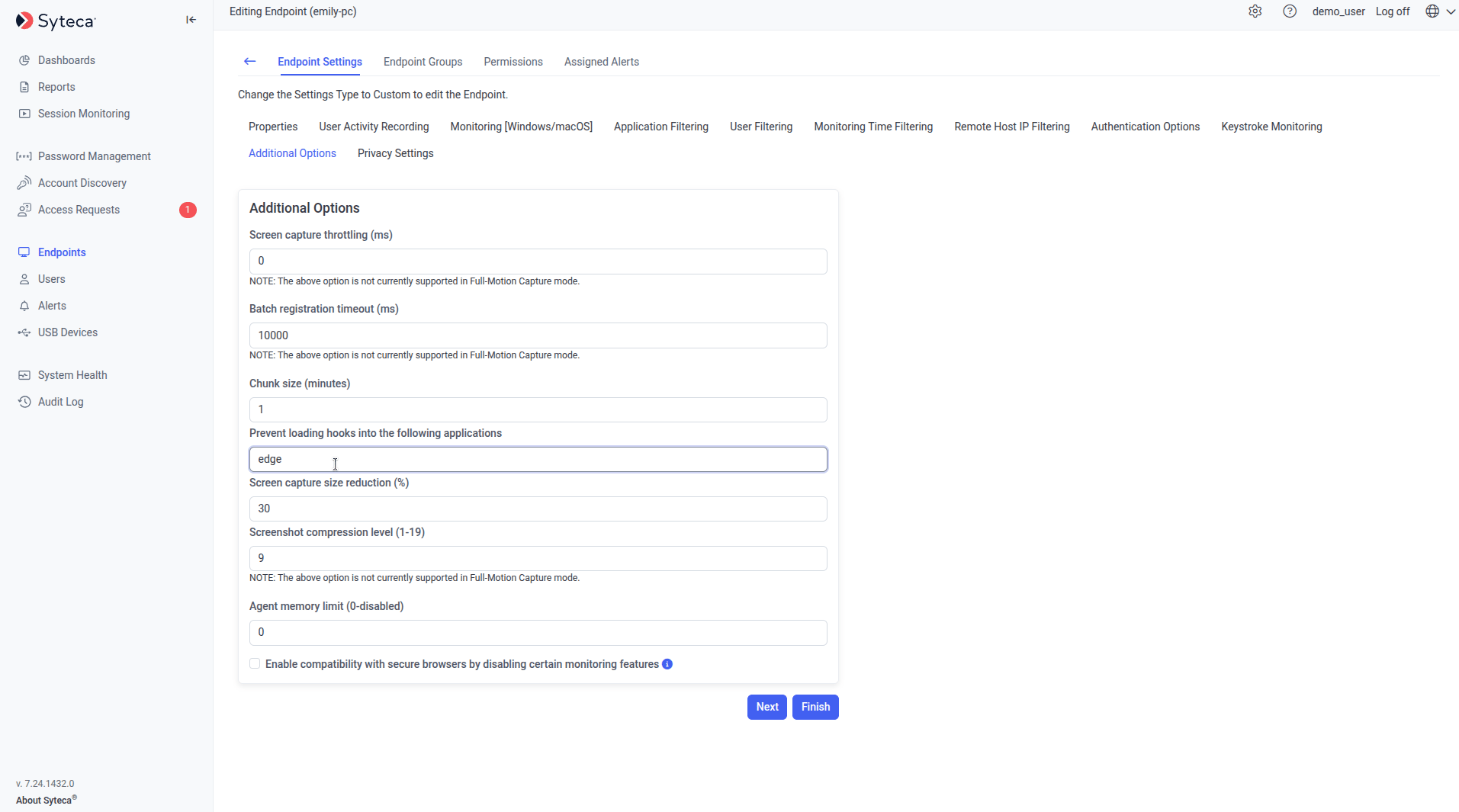
The Additional Options tab with bandwidth usage reduction parameters.
Example: multiple high-resolution monitors
To avoid performance issues on Client computers with multiple 2K/4K displays:- Reduce screen capture size by (%):
15 - Screen capture compression level (1-19):
5
Related
User activity recording
Configure when and how activity is recorded.
Offline cache size
Another lever for managing Client-side data volume.
Windows Clients
Full Windows Client installation and configuration reference.