

Applies to Windows and macOS Clients.
Enable it
1
Open the Monitoring tab
On the Editing Client / Editing Client Group page, select the Monitoring [Windows/macOS] tab.
2
Enable URL monitoring
Scroll to the URL Monitoring section and select Enable URL monitoring.
3
Optionally limit to top and second-level domains
Select Monitor top and second-level domain names only to record just the domain (for example
facebook.com) instead of the full URL (for example facebook.com/johndoe).4
Optionally disable URL monitoring for Firefox
If you notice performance issues or crashes in Firefox on monitored endpoints, select Disable for Firefox. URL monitoring will continue as normal in other supported browsers, such as Chrome, Edge, and Opera. (Windows only.)
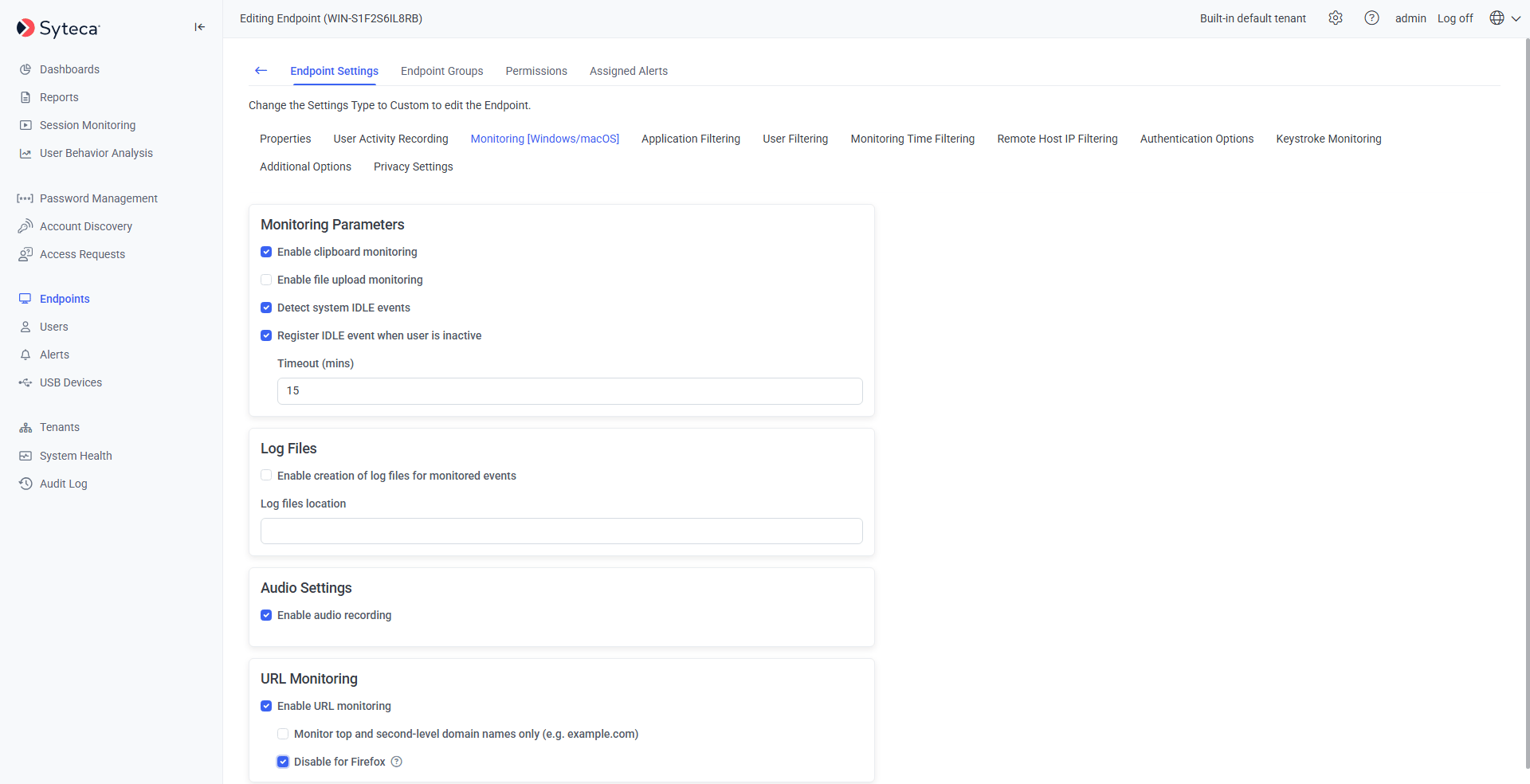
The URL Monitoring section on the Monitoring tab.
Example behavior
Limitations
- Windows
- macOS
- Only standard browsers are supported: Firefox, Chrome, Opera, and Internet Explorer.
- URLs from Metro versions of Chrome and Internet Explorer aren’t monitored.
- URLs entered in web anonymizers aren’t monitored (proxy server anonymizers are supported).
- URLs can’t be monitored if the browser has no address bar (for example, due to user settings).
- Unicode symbols in domain names aren’t monitored.
- The Disable for Firefox option isn’t available for the PAM Endpoints group.
Related
Windows Clients
Full Windows Client installation and configuration reference.
macOS Clients
Full macOS Client installation and configuration reference.
Alerts
Trigger notifications on visits to forbidden URLs.
Filtering parameters
Limit which applications, users, or time windows are monitored.