

A private vault for every employee, inside the same platform
Privileged accounts aren’t the only credentials your team handles. Every employee has dozens of business passwords — SaaS logins, departmental shared accounts, cloud consoles, vendor portals — that today probably live in browser autofill, sticky notes, or password managers your IT team doesn’t control. That’s a real attack surface and a compliance gap. Workforce Password Management (WPM) is Syteca’s answer: every user gets a private vault for their own work credentials, inside the same platform that secures your privileged accounts. WPM secrets are hidden from everyone else by default — even the user’s manager — unless the owner explicitly shares them. So an employee can keep their own SaaS logins private, share team credentials with their teammates, and never have to leave Syteca to do either.Use Workforce Password Management when you want to:
- Replace consumer password managers (LastPass, 1Password, browser autofill) with a single corporate-controlled platform.
- Give every employee a private vault — not just privileged-access users.
- Let teams share business credentials safely (departmental SaaS accounts, vendor portals) without sending passwords in chat or email.
- Audit how shared business passwords are used, the same way you audit privileged accounts.
- Consolidate PAM and employee password management onto one platform and one license.
This works in the desktop Syteca Connection Manager and, in a similar way, directly from the Management Tool using Syteca Web Connection Manager.
1. Allow a PAM user without Management Tool access to use WPM
To let a PAM user who does not have the Management Tool Access permission create and manage their own WPM secrets:1
Sign in as an administrator
Sign in to the Management Tool as a user with both the Management Tool Access and User Management administrative permissions.
2
In the Users section
Click Users, then Add User to add a new user, or click the Edit User icon to modify an existing one.
Only users added individually to the Management Tool can create secrets and folders. Users who belong only to an Active Directory group do not have this permission. For more information, see the Management Tool issues and error messages page.
3
Grant the PAM User Access permission
On the Administrative Permissions tab, grant the PAM User Access permission. It can also be inherited from a user group that has it (shown in the “Received from user groups” column) — for example, the PAM Users group.
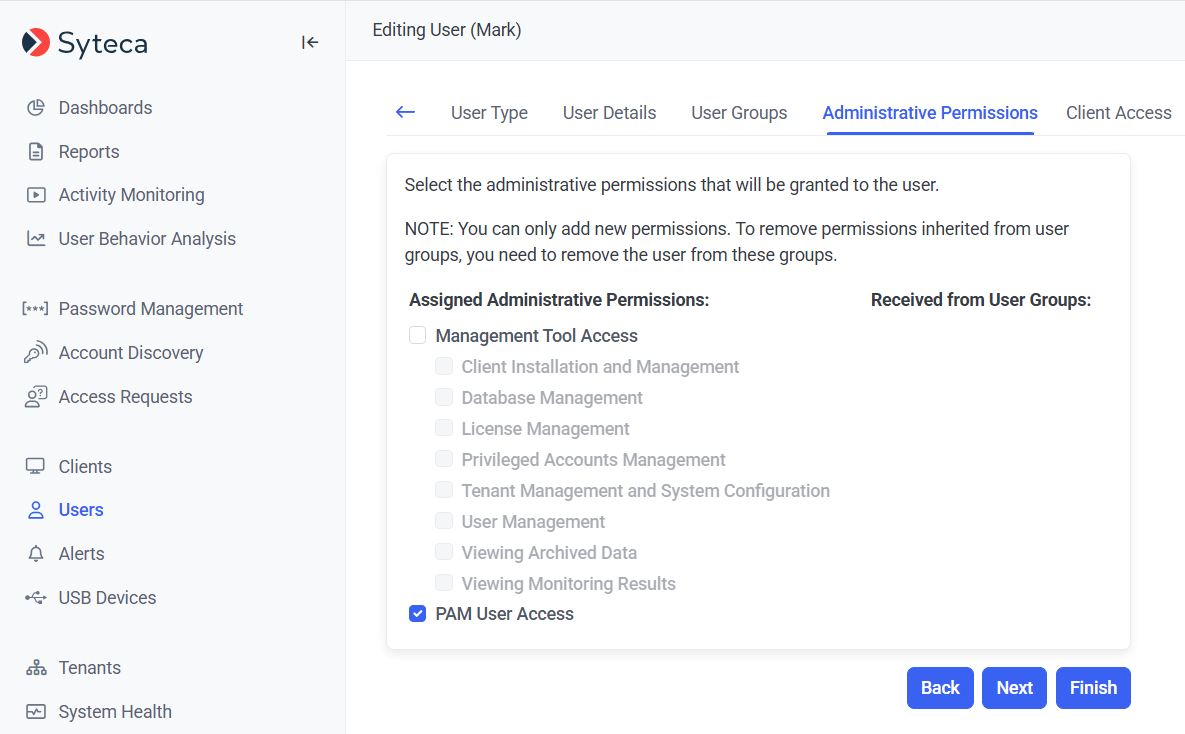
Granting the PAM User Access administrative permission.
2. Create WPM secrets as a PAM user
To create and manage your own private WPM secrets:1
Sign in to a Client computer
Sign in to a Client computer with Syteca Connection Manager enabled, as a Management Tool user with either the Management Tool Access or the PAM User Access permission.
2
Open Connection Manager
Open Syteca Connection Manager (for example, via the Syteca Remote Access icon).
3
Click Add Secret
Click Add Secret in the bottom left.
4
Log in
On the Management Tool login page that opens in your browser, enter your Login and Password.
The Login field is filled in automatically and can’t be changed.
5
Find your WPM folder
On the Password Management page, your own WPM folder is the current folder, named My Secrets (<username>). You can add WPM secrets and sub-folders to it.
Other PAM users’ WPM folders appear too, but only if they’ve shared at least one WPM secret with you. For owners in an Active Directory domain, the folder name includes the domain: My Secrets (<domain>\<username>).
6
Add or edit a secret, and optionally share it
Edit an existing WPM secret, or click Add to create one. To let other users use it, share it on the Permissions tab in the usual way. Sub-folders can also be added.
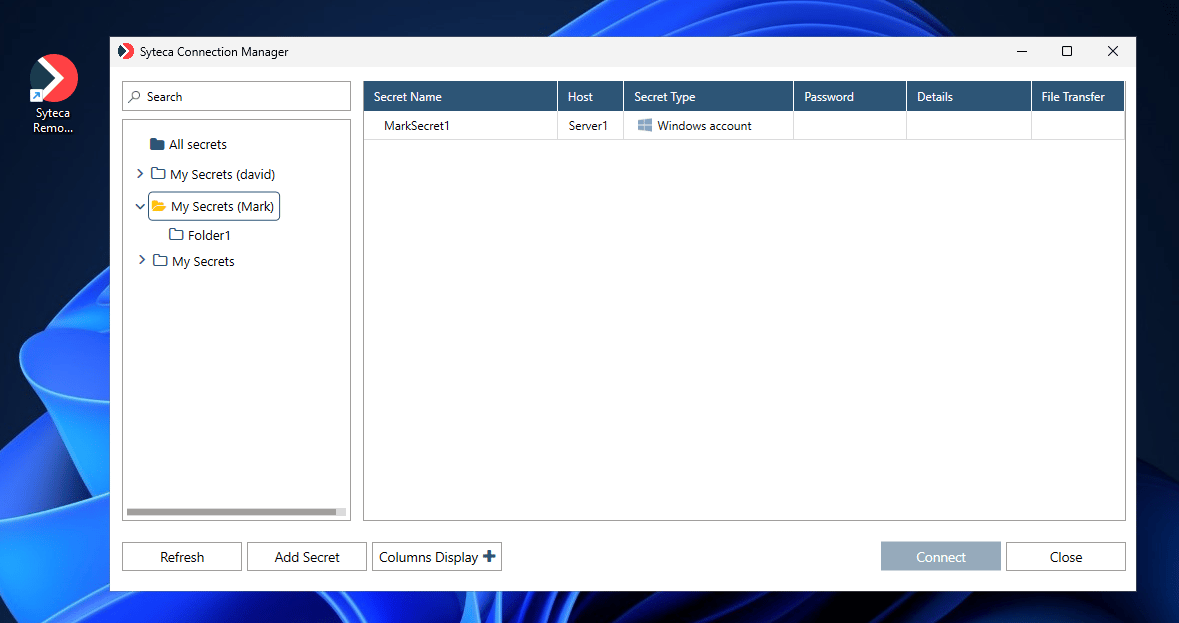
A PAM user's private My Secrets folder in Syteca Connection Manager.
Related
Add a secret
The full secret configuration reference.
Permissions for secrets
How sharing and Role Types work.
View and manage secrets
Where WPM folders appear in the tree-view.
Web Connection Manager
Manage WPM secrets from the browser instead of the desktop app.