

pacm command. A user can list the Secrets available to them, view Secret details, request access, and connect to a target system, all without leaving the terminal.
Use this when you need to:
- Give Linux/SSH-based administrators PAM access without a GUI or a Windows jump server.
- Let users on a Linux Endpoint browse, request, and use Secrets entirely from the command line.
- Extend recorded, credential-less privileged access to environments that are Linux-first.
Using the PAM Connection Manager requires a Password Management (PAM) seat license. See Assigning PAM seat licenses.
1. Prerequisites
Before a user can connect to a Secret with PACM, the following must be in place on the Linux computer running the Connection Manager:- For Telnet Secrets: a Telnet Client installed and configured.
- For key-based Unix SSH Secrets: PuTTYgen installed.
- The Enable the Syteca PAM Connection Manager option must be enabled on the Linux Endpoint (see below).
- The user must have a PAM seat license assigned.
- The user must have the Owner, Editor, or PAM User permission for each Secret they want to view or use.
- An unlimited number of users can use the Connection Manager on the same Linux Endpoint at the same time.
2. Enable the PAM Connection Manager on a Linux Endpoint
PACM is enabled per Linux Endpoint, from the Management Tool.1
Open the Endpoint
On the Endpoints page, open the Linux Endpoint for editing.
2
Enable the option
In the Endpoint Mode section of the Editing Endpoint page, select Enable the Syteca PAM Connection Manager.
3
Save
Save the changes.
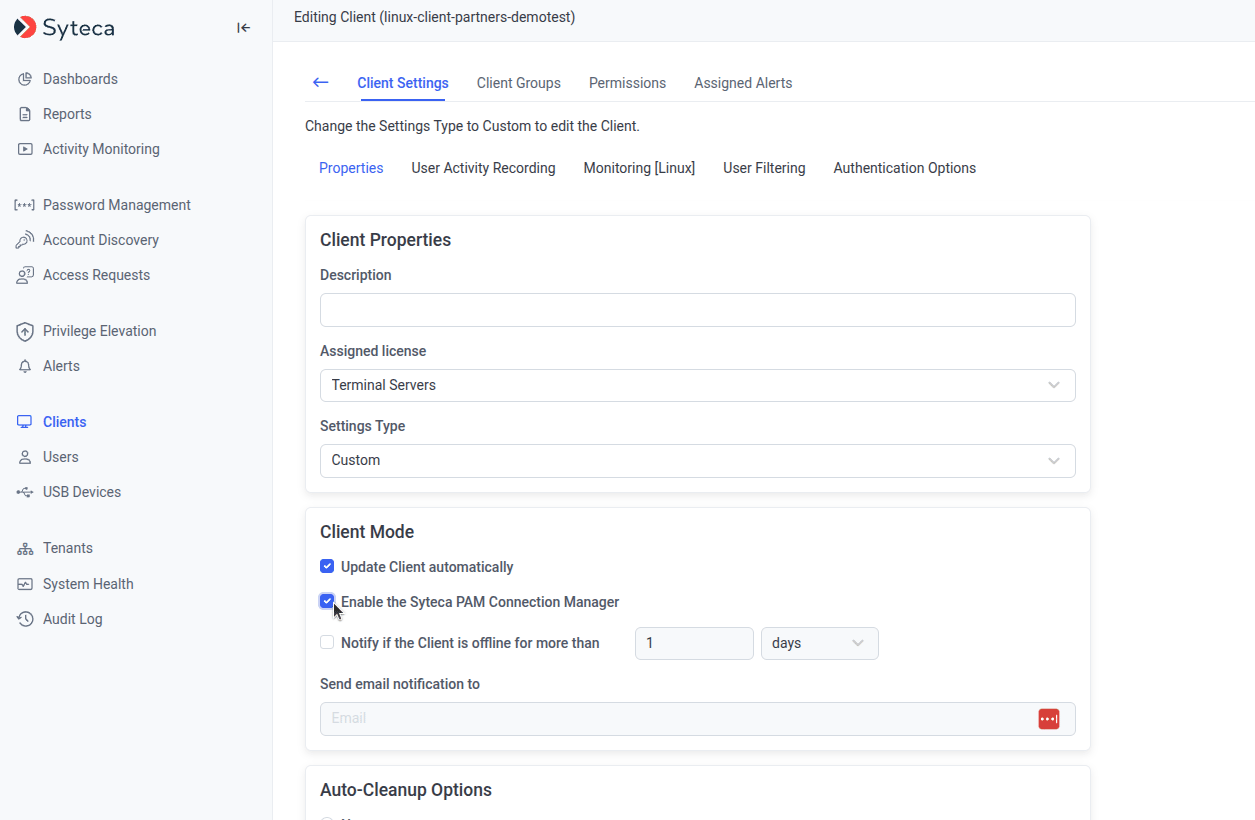
The Enable the Syteca PAM Connection Manager checkbox in the Endpoint Mode section.
Unchecked by default. If a Linux Endpoint belongs to an Endpoint group and inherits its settings, and the group has this option enabled, the Endpoint inherits it too.
3. Launch the Connection Manager
Run the following command in a Linux SSH or local terminal session: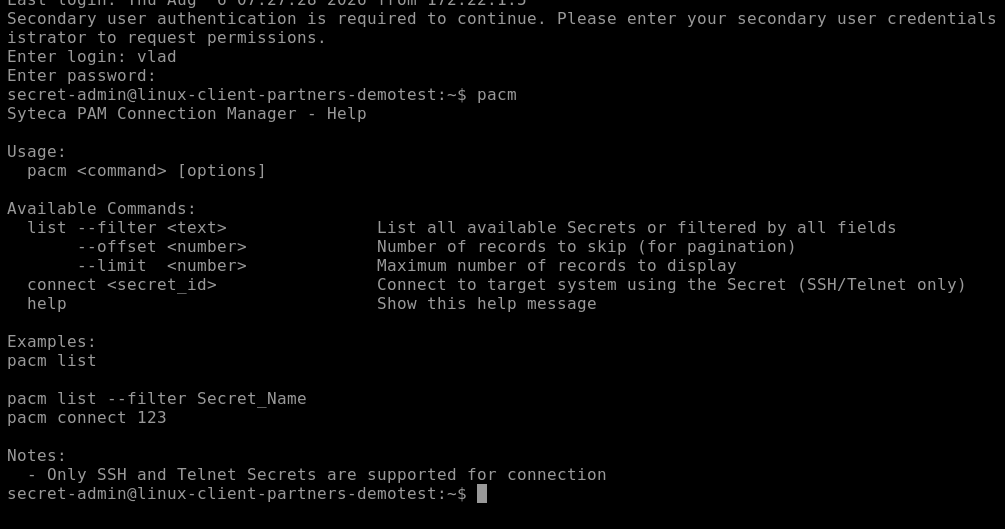
PACM launching successfully in a terminal session.
Error messages
4. View available commands
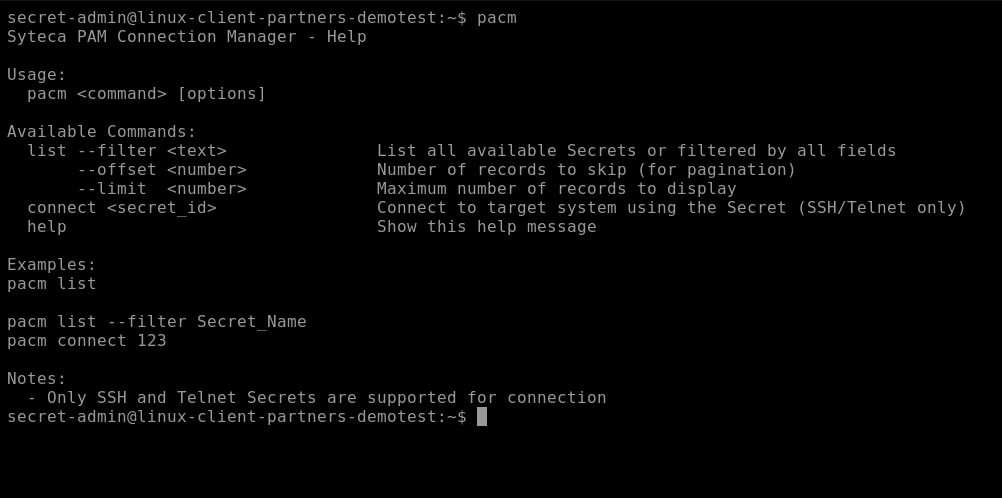
Output of the pacm help command.
5. List available Secrets
No secrets available.
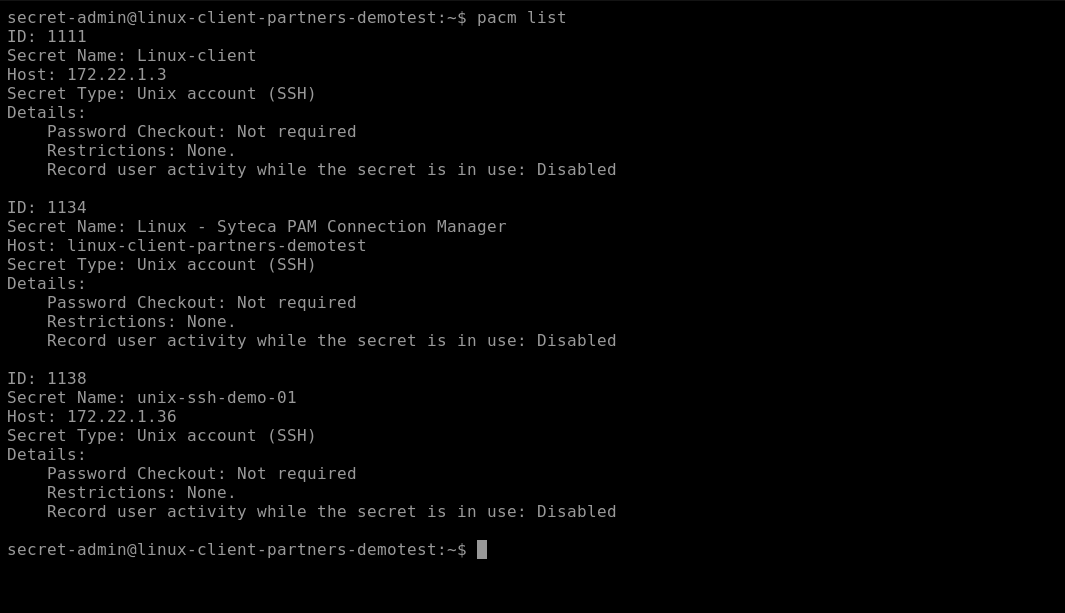
Output of pacm list, showing multiple available Secrets.
Filter the list
- Matches the ID, Secret Name, Host, Secret Type, and Details fields — a Secret is included if the filter value matches at least one field.
- Matches as a substring, not a full match (
--filter testmatchestest-db,testware,secret-test). - Case-insensitive.
- Only a single
--filterper command.
If nothing matches:
No secrets available.
Paginate the list
--offset— number of records to skip.--limit— maximum number of records to display.
Error: Invalid pagination parameters.
6. Connect to a Secret
- Connect by Secret name or by ID.
- Secret name matching is case-insensitive (
Test-Servermatchestest-server). - Press Ctrl+C to close a connection established via a Secret.
Entering the secondary user password
You may be prompted for the secondary user’s password before connecting:- Not requested if you logged in to the Endpoint session, or entered a password to connect to another Secret, less than 5 minutes ago.
- Requested if more than 5 minutes have passed.
Sorry, try again. After 3 failures: 3 incorrect password attempts, and the connection is terminated.
Access restrictions and approval
Behavior depends on the Secret’s restriction settings:Owners and Approvers connect without restrictions unless Owners or Approvers also require approval is selected for the Secret — in which case they’re restricted too.
Password checkout
Connection errors
7. Recording Secret usage
When Record user activity while the secret is in use is selected for a Secret, activity performed while it’s in use can be recorded.- If the Endpoint has a license but not UAM, a session is still created, but contains only the activity performed while using the Secret — starting on connect, stopping on disconnect.
- If both UAM and PAM are in the serial key and PAM → Session Recording is on, Secret usage is recorded for Secrets with Enable session monitoring when the secret is being used selected, regardless of the Record user activity only on alert or USB monitoring rule triggering setting.
8. View Secret usage in the Management Tool
Activity Monitoring
- Secret usage in local Linux terminal and SSH sessions is marked on both the metadata grid and the progress bar of the relevant session.
- Hovering over the progress bar mark shows: Use of Secret <secret name>.
- Usage marks remain visible after the session is archived, and appear in exported forensic sessions.
- On Endpoint Sessions, use the Secret Usage filter to find Linux local terminal and SSH sessions that used a Secret.
Audit Log
A record is added after a Secret is used in a Linux local terminal or SSH session:Multi-Tenant and Load Balancing modes
- Multi-Tenant mode: works the same on a non-default tenant as on the default tenant.
- Load Balancing mode: once Enable the Syteca PAM Connection Manager is enabled on one node for a Linux Endpoint, the setting is shared across all nodes.
Related
Desktop Connection Manager
The equivalent GUI-based jump server experience for Windows.
Web Connection Manager
Browser-based, agentless access to Secrets.
PAM Connection Manager (Jump Server Mode)
The parameter that enables jump-server mode on a Client.
Assigning PAM seat licenses
The license this feature requires.