

Use this when you need to:
- Catch a secret whose password was changed outside Syteca — by a sysadmin, a scheduled task, or a security incident — before someone tries to use it or before rotation runs into it.
- Get an early warning on invalid credentials, instead of finding out only when remote password rotation or a connection attempt fails.
- Monitor a large secret inventory for drift at a glance, using the Heartbeat status column and filters.
- Active Directory account
- Windows account
- Unix account (SSH)
- MS SQL account
Not supported for Unix account (Telnet) or Web account secret types.
Heartbeat checking can also be configured and queried through the Syteca ACB API — including scheduling checks via Add secret / Update secret, reading results via Get secret, and triggering an on-demand check via the Heartbeat endpoint. This page covers the Management Tool UI; see those pages for API and CLI details.
Enable Heartbeat checking when adding a secret
Heartbeat checking is configured on the Automation tab of the Add Secret panel, below the Remote Password Rotation section.1
Open Add Secret
On the Password Management page, click Add.
2
Open the Automation tab
In the Add Secret panel, select the Automation tab.
3
Enable Scheduled Heartbeat
Select Scheduled Heartbeat.
4
Set the check interval
In the Heartbeat every field, enter the interval value and select a time unit:
The field is pre-filled with
30.5
Finish the secret and save
Complete the remaining tabs as required, then click Save.
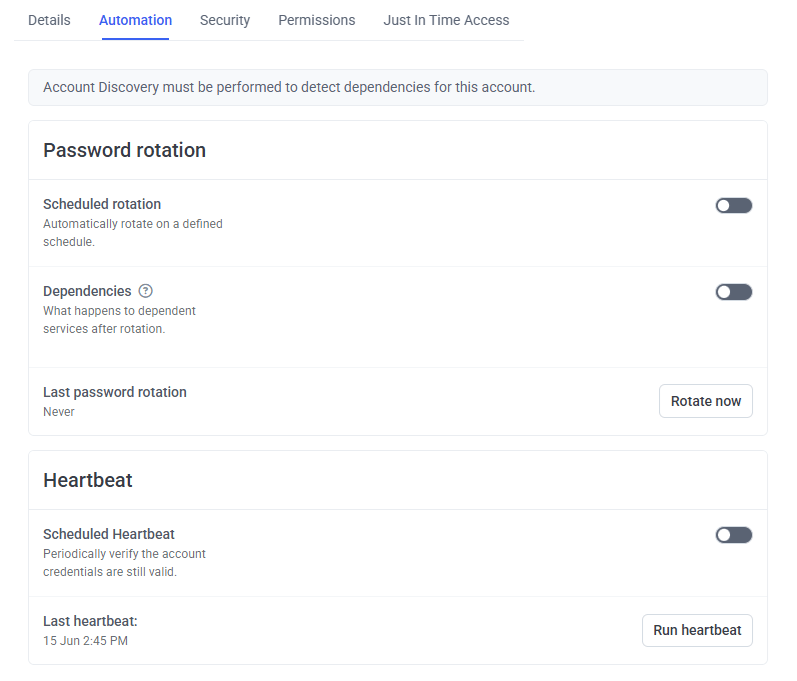
The Scheduled Heartbeat section on the Automation tab.
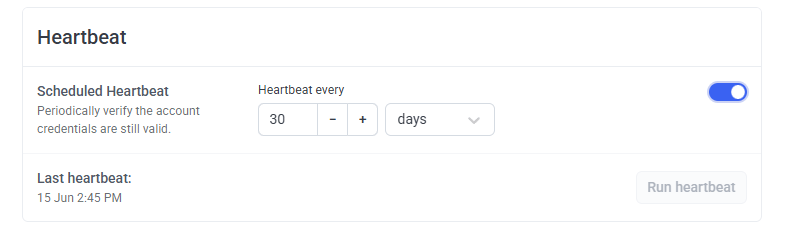
The Heartbeat every interval field.
Configure Heartbeat checking for an existing secret
1
Open the secret
On the Password Management page, open the secret to configure.
2
Open the Automation tab
In the Edit Secret panel, select the Automation tab.
3
Enable or disable Scheduled Heartbeat
Toggle Scheduled Heartbeat on or off. When enabled, configure the Heartbeat every interval as above.
The Heartbeat every field is disabled while Scheduled Heartbeat is off.
4
Save
Click Save.
Manual Heartbeat check (Run heartbeat)
Clicking Run heartbeat checks the secret’s password validity immediately. Last heartbeat updates, and one of these appears:View Heartbeat status on the Password Management page
Two optional columns — Heartbeat status and Last heartbeat check — can be added to the Secrets grid, both hidden by default.1
Open Edit Columns
On the Password Management page, click Edit Columns.
2
Select the columns
Check Heartbeat status and/or Last heartbeat check.
3
Close the list
The selected columns now appear in the Secrets grid.
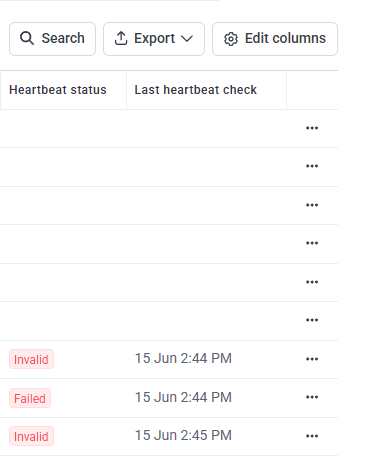
Heartbeat status and Last heartbeat check columns enabled in the Secrets grid.
These columns aren’t shown for sub-secrets (computers for which connections are allowed, as specified in an Active Directory secret) — same behavior as the Password Rotation columns. The date and time in Last heartbeat check always matches Last heartbeat on the Automation tab for the same secret.
Heartbeat status values
Filter by Heartbeat status
Two filters are available on the Password Management page: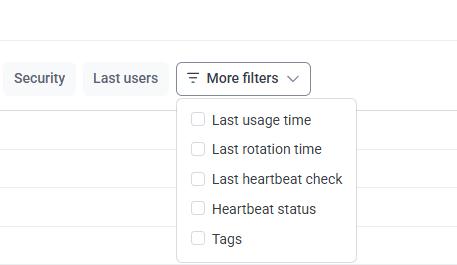
The Heartbeat status and Last heartbeat check filters.
Audit Log events
Every Heartbeat configuration change and manual check is recorded in the Audit Log:System Health: System State and Tasks List
Heartbeat check results and errors also appear on the System Health page, in both System State and the Tasks List.System State
Tasks List
Every Heartbeat task uses the task name Heartbeat check. When a task shows Failed, the reason appears in the Details column — a known reason is “The host is unavailable.”
Related
Add a secret
Full secret configuration reference, including the Automation tab.
Remote password rotation
Automatically change a password instead of just checking it.
Heartbeat API endpoint
Trigger and configure Heartbeat checks via the ACB API or CLI.
Audit log
Full audit trail reference.