

This works in the desktop Syteca Connection Manager and, in a similar way, directly from the Management Tool using Syteca Web Connection Manager.
Before you start
To configure Password Checkout, you need the Owner or Editor Role Type for the secret.Configure Password Checkout
On the Security tab while adding or editing a secret, set the following options: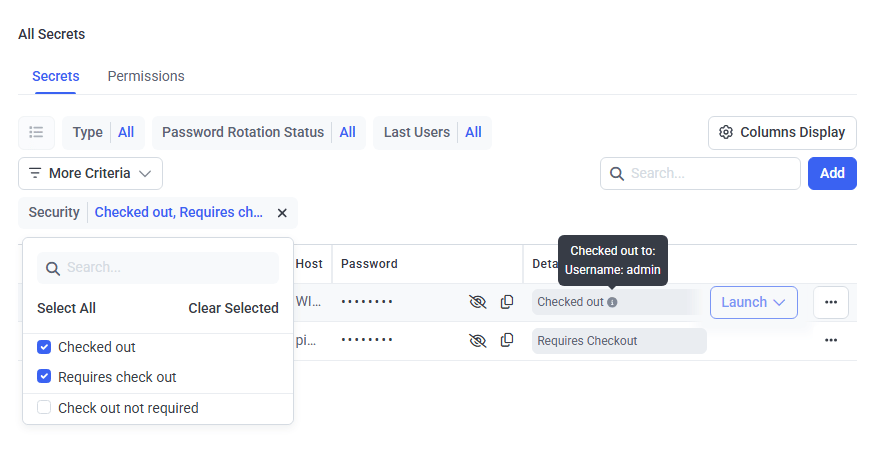
The Password Checkout options on the Security tab.
Change password on check in is independent of Enable remote password rotation (on the Automation tab). Both can be active at once without affecting each other.
Check in automatically after is independent of Allow access without approval during work hours (on the Just In Time Access tab). If both are active, the user is logged off when the first period expires.
Password Checkout is independent of the access approval functionality (Just In Time Access tab). If both are active, the user must request and receive approval and check out the secret before using it.
View checkout status
You can see the checkout status of every secret in two places:- On the Password Management page’s secrets grid, the Details column shows the status, with more detail in the tooltip on the Checked out icon. Use the Security filter (via More Criteria) to filter by status.
- In Syteca Connection Manager, the Details column shows the same status.
Related
Add a secret
Configure Password Checkout while creating a secret.
Remote password rotation
Rotate passwords automatically, independently of check-in.
File transfer
Requires both checkout options to be enabled.
View and manage secrets
See checkout status across all secrets.