

No ticket, no access — and a session link back on every ticket
Privileged access without a paper trail is a compliance and forensic nightmare. Ticketing System Integration ties every privileged login to a real, open ticket in your change-management system: the user enters a ticket number when they log in, Syteca validates it against your ticketing platform, and if the ticket isn’t open the login is denied. When the session ends, Syteca writes a link to the corresponding session recording back into the ticket — so anyone reviewing that ticket can replay exactly what was done under its authority. It’s the bridge between “we have a PAM platform” and “every privileged action is traceable to an approved change.” Auditors love this. SOC teams love this. Anyone investigating an incident six months later loves this.Use Ticketing System Integration when you need to:
- Enforce “no privileged work without an approved ticket” as policy.
- Make every recorded session findable from your change-management system, not just from Syteca.
- Meet audit requirements that demand a documented business reason for privileged access (PCI DSS, SOC 2, ISO 27001, ITIL change control).
- Eliminate the gap between “the ticket was approved” and “what actually happened during the work.”
How it works
When the appropriate options are enabled, a user connecting to a Windows endpoint must enter a ticket number. Syteca validates that number with the ticketing system, and if the ticket has the open status, log on is permitted. Syteca then attaches a URL to the ticket so the corresponding session can be reviewed.Syteca supports SysAid and ServiceNow directly. To integrate any other ticketing system, use the API Bridge — a REST-based application you run yourself — or contact the Support team to discuss your system.
Before you start
- You sign in with a user that has the administrative Database Management permission. Only such users can edit ticketing system integration settings.
- You have the connection details for your ticketing system (URL, account, login, and password).
- If you require users to enter a ticket number at login, the corresponding login option must also be enabled. See the additional message on user login parameter.
Open the Ticketing System Integration settings
1
Open Configuration
Click the Configuration button at the top of the Management Tool.
2
Go to Integrations
On the Configuration page, select the Integrations tab.
3
Open the Ticketing System sub-tab
Select the Ticketing System Integration sub-tab.
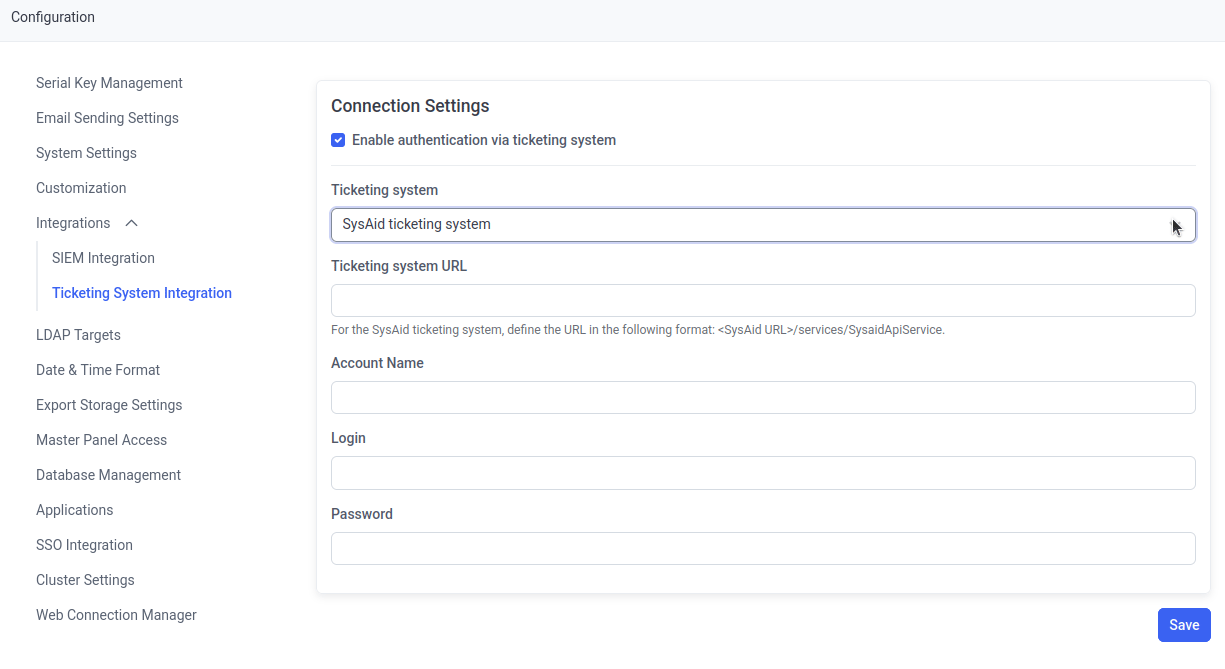
The Ticketing System Integration sub-tab on the Configuration page.
Configure the integration
1
Enable the integration
Select Enable authentication via ticketing system.
2
Choose your ticketing system
In Ticketing System, select SysAid, ServiceNow, or API Bridge, then fill in the parameters for that system using the tabs below.
- SysAid
- ServiceNow
- API Bridge
Related
API Bridge
Integrate any custom or unsupported ticketing system using the REST-based API Bridge.
SIEM integration
Forward Syteca events to Splunk, ArcSight, or IBM QRadar.