

Syteca as a data source for your SIEM
Your SIEM is where security events get correlated, alerted on, and investigated - and the activity Syteca records on endpoints and inside the Management Tool is exactly the kind of data a SOC team wants flowing into it. SIEM Integration forwards Syteca’s session events, triggered alerts, and audit log entries to your existing SIEM in real time, over standard Syslog, in CEF or LEEF - the formats Splunk, ArcSight, IBM QRadar, Elastic, and other Syslog-compatible SIEMs already parse. The point isn’t just to have the data in two places. It’s so your SOC can correlate Syteca’s user-activity signal against everything else they monitor - and catch the breach pattern that no single system would see alone. The classic example: the same employee logged in to four different servers at once. Each individual login looks normal; the combination is a red flag a SIEM would surface from this feed.Use SIEM Integration when you need to:
- Stream Syteca user-activity, alert, and audit events into Splunk, ArcSight, QRadar, Elastic, or any Syslog-compatible SIEM.
- Correlate insider-threat signals with logs from other parts of your stack.
- Centralize security investigations and incident response in your existing SIEM, not a separate Syteca-only workflow.
- Retain Syteca events long-term in your SIEM for compliance.
How it works
Syteca creates a log file on the Application Server and forwards it to your SIEM system. You control the log format and which data is written to it. You can also send data over the network without creating a log file. Forwarding security events to a SIEM helps surface potential breaches - for example, the same user logged in to four different servers at once may indicate a compromised account. Logs can be forwarded in one of two formats, both readable by Splunk, ArcSight, and IBM QRadar:- Common Event Format (CEF)
- Log Event Extended Format (LEEF)
Before you start
- You sign in with a user that has the administrative Database Management permission. Only such users can edit SIEM settings.
- You know the IP address and port of your SIEM system.
- For an encrypted connection, you have a server certificate ready. See how to create a self-signed SSL certificate.
Open the SIEM Integration settings
1
Open Configuration
Click the Configuration button at the top of the Management Tool.
2
Go to Integrations
On the Configuration page, select the Integrations tab.
3
Open the SIEM Integration sub-tab
Select the SIEM Integration sub-tab.
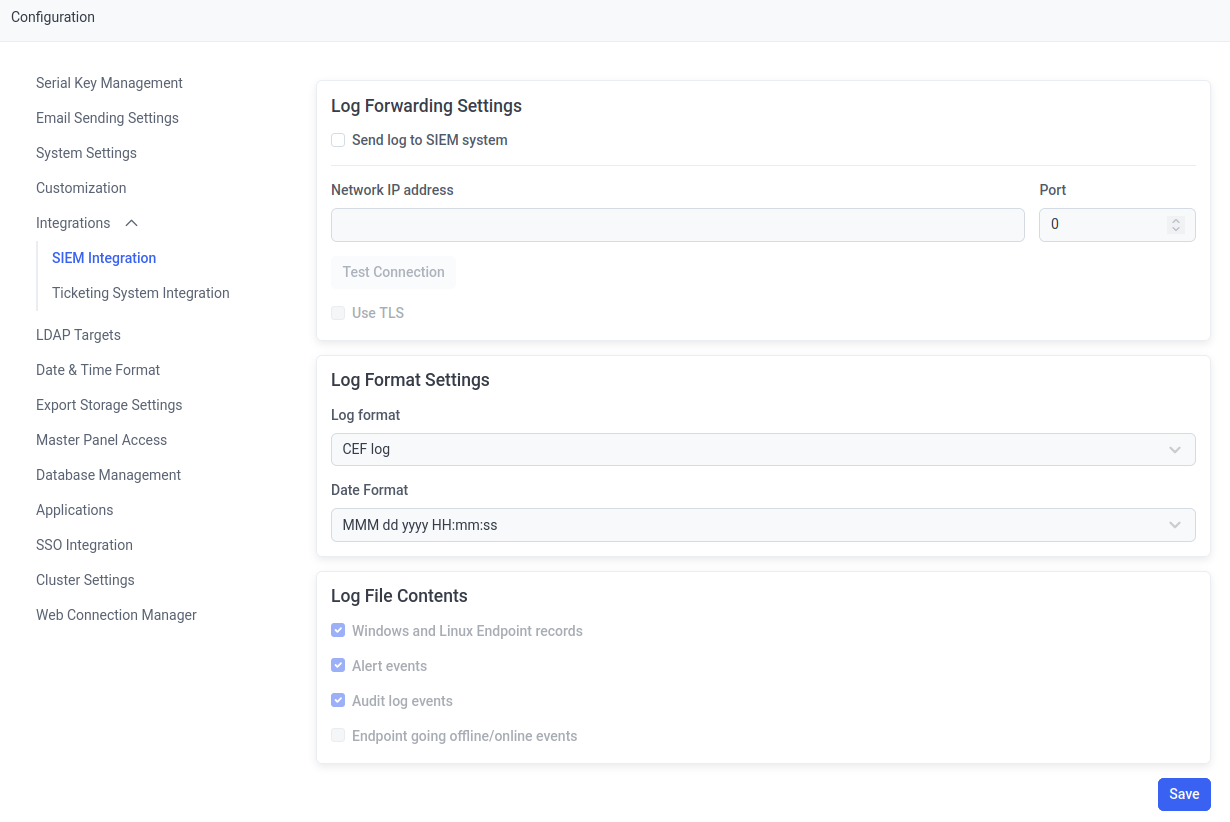
The SIEM Integration sub-tab on the Configuration page.
Configure the settings
The SIEM Integration sub-tab has four sections.Log File Settings
Not available in SaaS. These options are also unavailable in High Availability mode.
EventLog and is stored in the Application Server installation folder.
- Create a log file - enable log file creation.
- Log file location - where the log files are stored.
- Cleanup daily at - the time the daily cleanup runs.
- Cleanup every - how often cleanup runs.
- Maximum file size (GB) - the maximum log file size.
During cleanup, the current log file is renamed (with the cleanup date and time appended) and a new one is created in the same folder. Check disk space regularly and delete log files you no longer need so the Application Server doesn’t run out of space.
Log Forwarding Settings
Enable forwarding and define the SIEM system that records are sent to.- Send log to SIEM system - enable log forwarding.
- Network IP address - the IP address of the SIEM system.
- Port - the port of the SIEM system.
- Test Connection - sends a test record to the SIEM system to verify the connection settings.
- Use TLS - forwards records over an encrypted TLS connection. Upload a server certificate to validate the connection. See how to create a self-signed SSL certificate.
Log Format Settings
Define the format of the log file.- Log format - select CEF or LEEF.
- Date format - the date format used in the log file.
Log File Contents
Select which data is written to the log file and forwarded:- Windows and Linux Client records - all session records from Windows and Linux Clients.
- Alert events - all alerts triggered on Windows and Linux Clients.
- Audit log events - all audit log records.
- Client going offline/online events - all events where a Client goes offline or comes online.
Event data reference
Depending on the Log Format Settings, different types of monitoring data are written to the log and forwarded. The table below shows the header information and log data for each event category.Log format description
Log format description
Related
Ticketing system integration
Require ticket numbers at login via SysAid, ServiceNow, or the API Bridge.
Audit log
Review Management Tool activity that can be forwarded to your SIEM.