

Role types
Syteca exposes three role types for secret/folder access through the ACB API. Each role has a defined set of permitted endpoints:Roles apply per-resource — a user can be Owner of one folder, Editor of another, and PAM User of a third. Permissions also cascade down folder hierarchies: a permission set on a parent folder applies to its child folders and secrets unless overridden at the child level.
Edit permissions on a Folder
1
Open the folder
In the Management Tool, navigate to PAM → Secrets. Click the folder you want to edit.
2
Open the Permissions tab
On the Edit Folder page, click the Permissions tab.
3
Add or modify the user's role
Click Add to grant a new permission, or click the role next to an existing user to modify it. Pick the appropriate role (Owner, Editor, or PAM User) and save.
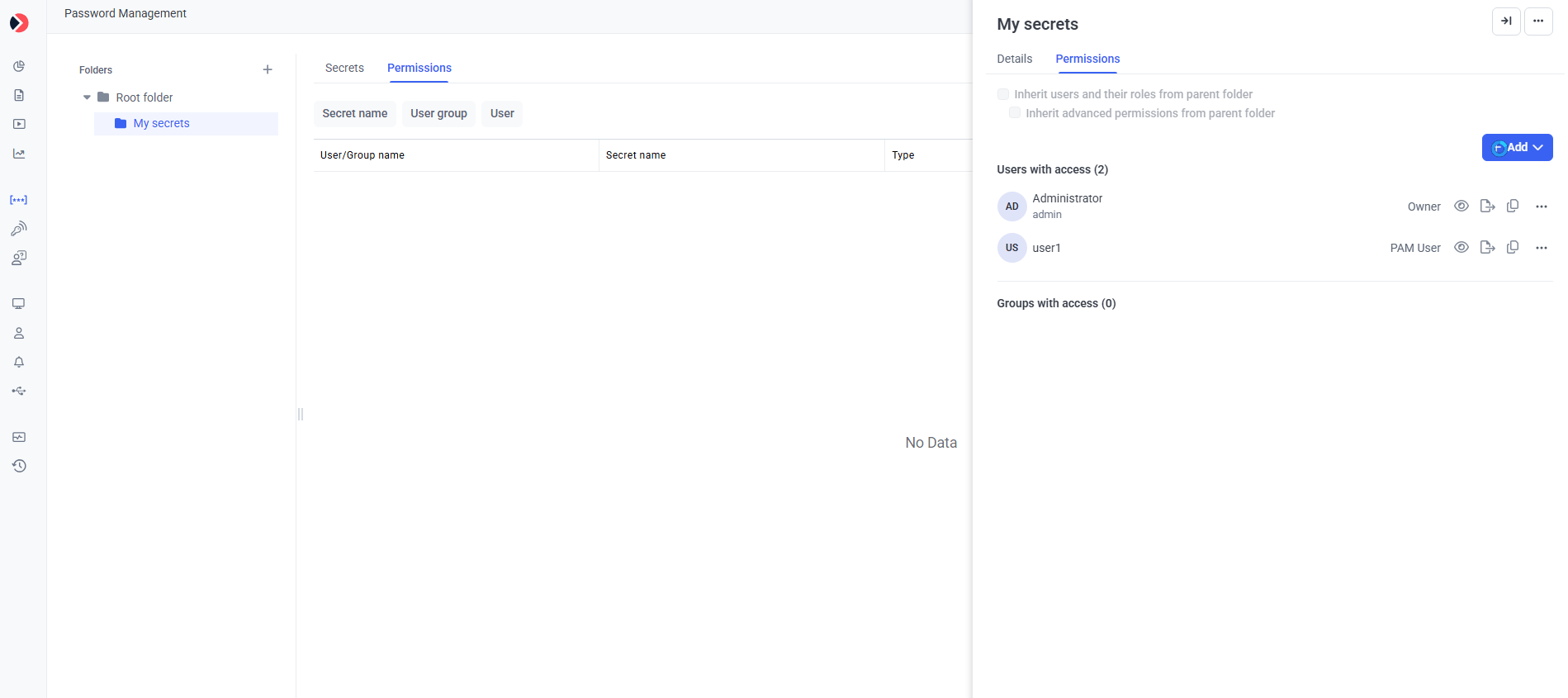
The Permissions tab on Edit Folder — assign Owner, Editor, or PAM User to users that should access the folder via API.
Edit permissions on a Secret
The procedure for secrets mirrors the one for folders:1
Open the secret
In the Management Tool, navigate to PAM → Secrets. Click the secret you want to edit.
2
Open the Permissions tab
On the Edit Secret page, click the Permissions tab.
3
Add or modify the user's role
Click Add to grant a new permission, or modify an existing one. Save.
Find the Secret ID and Folder ID
The ACB API references secrets and folders by their ID (integer). These IDs are visible on the Automation tab of the Edit Secret or Edit Folder page — but the Automation tab only appears when the user opening the page has the administrative Privileged Accounts Management permission and the deployment’s product license enables the Password Management application with the Automation feature.1
Open the secret or folder
Navigate to PAM → Secrets and open the secret or folder.
2
Open the Automation tab
Click the Automation tab.
3
Copy the ID
The Secret ID (for a secret) or Folder ID (for a folder) is displayed. Click the Copy icon to copy it to your clipboard.
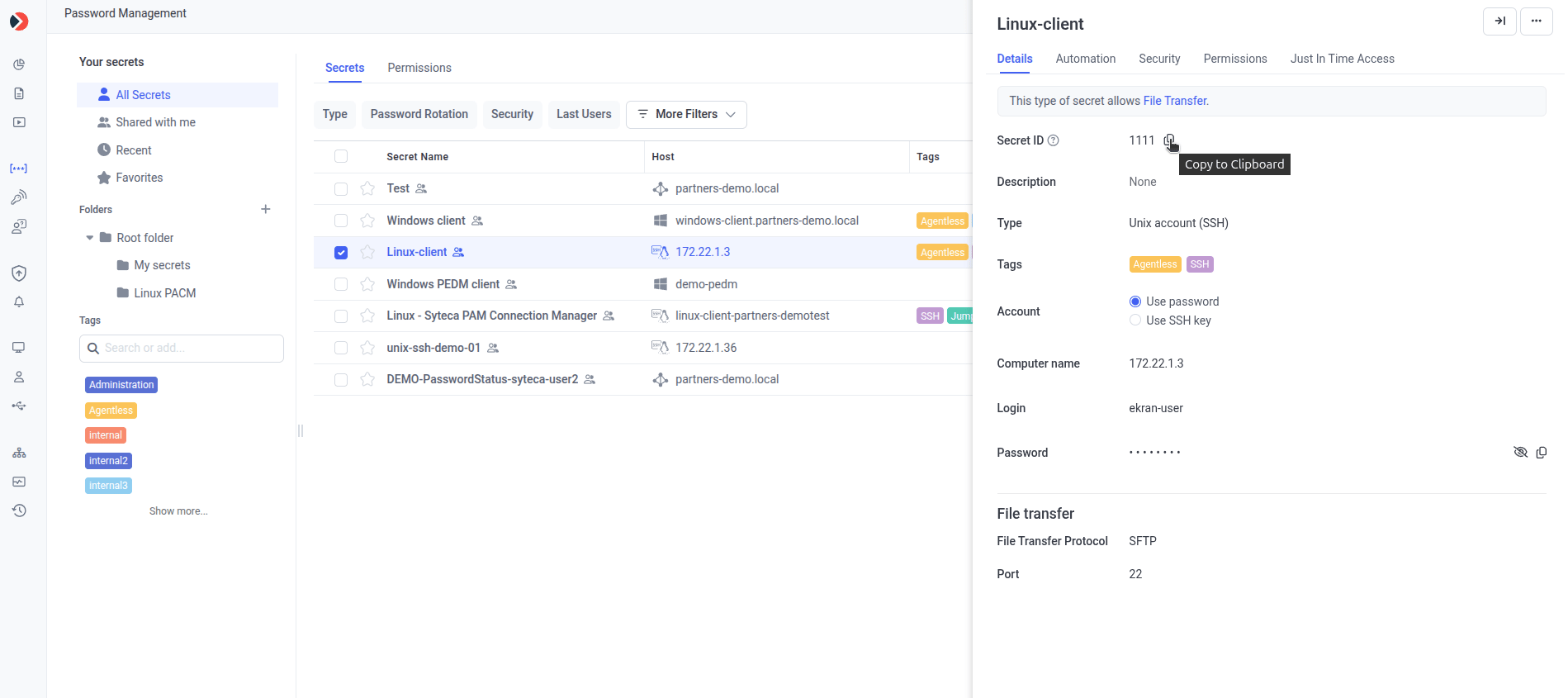
The Automation tab — Secret ID (or Folder ID on the folder page) is the integer your API consumer needs.
Permissions in the API itself
ACB endpoints that modify permissions (e.g.AddFolder, AddSecret, UpdateFolder, UpdateSecret, BulkAdd) accept a permissions object in the request body. See Data models → Permissions for the schema.
Related
Set up user account
Configure Application Account Settings with the Refresh Token.
Data models
Permissions, Permission, and related schemas used in request bodies.
API reference
Base URL, authentication, status codes, rate limiting.
Get secret credentials
The most-called endpoint — typically requires PAM User role at minimum.