

1
Open the Application Server settings file
On the Application Server computer, open
EkranServer.Settings.config (by default in C:\Program Files\Ekran System\Ekran System\Server).2
Add the Venn integration key
3
Restart the Application Server
Save the file, then restart the EkranServer service.
Enabling Venn integration automatically turns on Capture active window only and locks it — the checkbox can no longer be changed in the Management Tool.
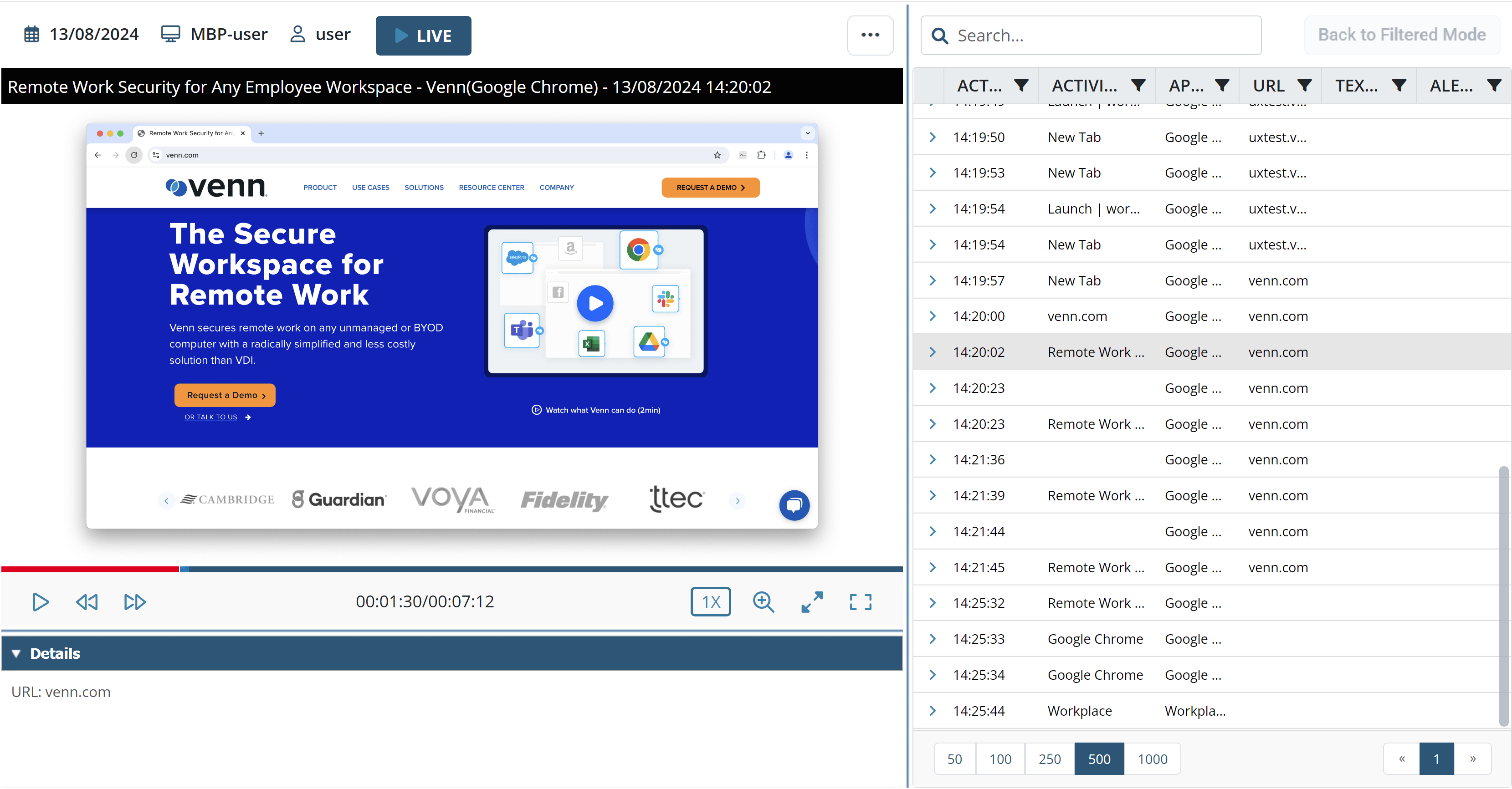
A Venn workspace application in the Session Player, with the rest of the desktop hidden.
Related
User activity recording
The Capture active window only parameter this integration controls.
Windows Clients
Full Windows Client installation and configuration reference.
macOS Clients
Full macOS Client installation and configuration reference.