

Resolve Backspace key issues (MobaXterm vs. PuTTY/OpenSSH)
By default, MobaXterm sends ^H (ASCII 0x08, the BS character) when you press Backspace, while PuTTY and OpenSSH clients typically send ^? (DEL, 0x7F). If the client and server don’t agree on which character represents Backspace, you may see ^H printed on screen instead of characters being deleted, or Backspace may not work at all.Step 1: Choose a fix location
You can resolve the mismatch either on the client (MobaXterm) or on the server. Option A — Client-side (MobaXterm)- Open Settings → Terminal
- Disable the “Backspace sends ^H” option
- Restart the session
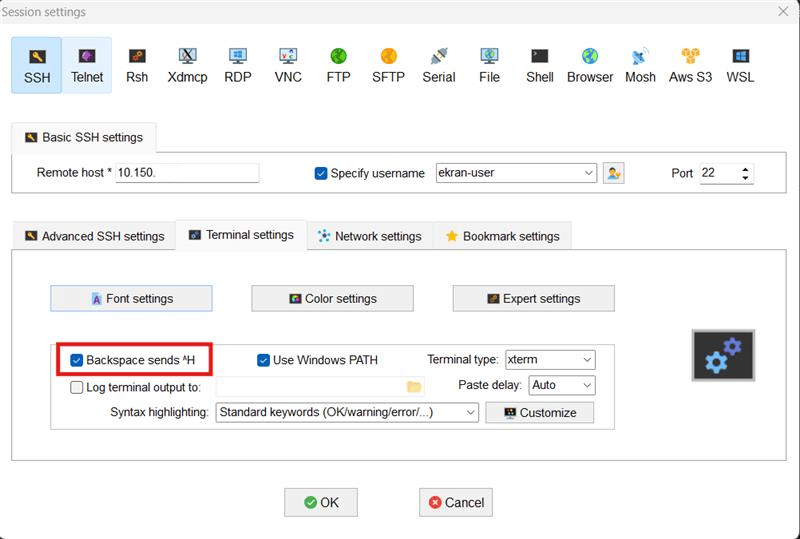
'Backspace sends ^H' checkbox in Session settings (MobaXterm)
Step 2: Verify the fix
Press Backspace in your terminal session and confirm that characters are deleted correctly and ^H is no longer printed on screen.Log SSH connections through a jump server
When an SSH connection is tunneled through a jump server, the jump host never opens an actual new SSH connection to the target — it just forwards the TCP stream, and that stream stays encrypted end-to-end between the original client and the final target. Because of this, a Syteca Client installed on the jump host can’t monitor tunneled connections, whether the tunnel was opened with the-J flag or by proxying through sshd_config. To monitor these sessions, Syteca must be installed on the target host instead.
Prevent tunneling through the jump host
To stop connections from tunneling through a jump server entirely, add the following to itssshd_config:
Log tunneled connections at the jump host
Alternatively, if the connection is opened as a nested SSH command rather than a true tunnel:Resolve SSH connection delays with mDNS
Configuring mDNS (multicast DNS) on a Linux endpoint lets it resolve other local devices’ hostnames without a central DNS server — which can eliminate the delay some SSH connections experience while the system tries (and fails) to resolve local hostnames without one. Avahi is the most common mDNS implementation for Linux.1
Install Avahi
- Debian / Ubuntu
- RHEL / CentOS
2
Enable and start the daemon
3
Optionally configure the Avahi config file
use-ipv4=yes/use-ipv6=yes— enable Avahi on IPv4, IPv6, or both.allow-interfaces=eth0— restrict Avahi to specific interfaces.deny-interfaces=eth1— exclude specific interfaces.
4
Restart Avahi
5
Check Avahi's status
6
Open the mDNS port in the firewall
Avahi needs UDP port
5353 open:- iptables
- firewalld
7
Test hostname resolution
<hostname> with the target computer’s actual hostname. Names ending in .local should now resolve without further configuration.The Linux Client doesn’t record sessions of non-root users
1
Check the basics first
Confirm the Linux Client is online with a valid license, and that no filtering parameter or rule excludes the affected users.
2
Check settings.xml permissions
Run:The
.ekran folder needs 755 permissions, and settings.xml needs 644.3
Check the Client installation folder permissions
Run:The
.Ekran folder and every file inside it need 755 permissions.4
Check ld.so.preload permissions
Run:This file needs 644 permissions.
Restart the Linux Client
Related
Linux Clients
Full Linux Client installation and configuration reference.
Windows Firewall configuration
Ports required for Application Server connectivity.
Client Troubleshooting
General causes of a Client appearing offline.
Logs
Collect Linux Client logs for deeper diagnosis.